Billing Management
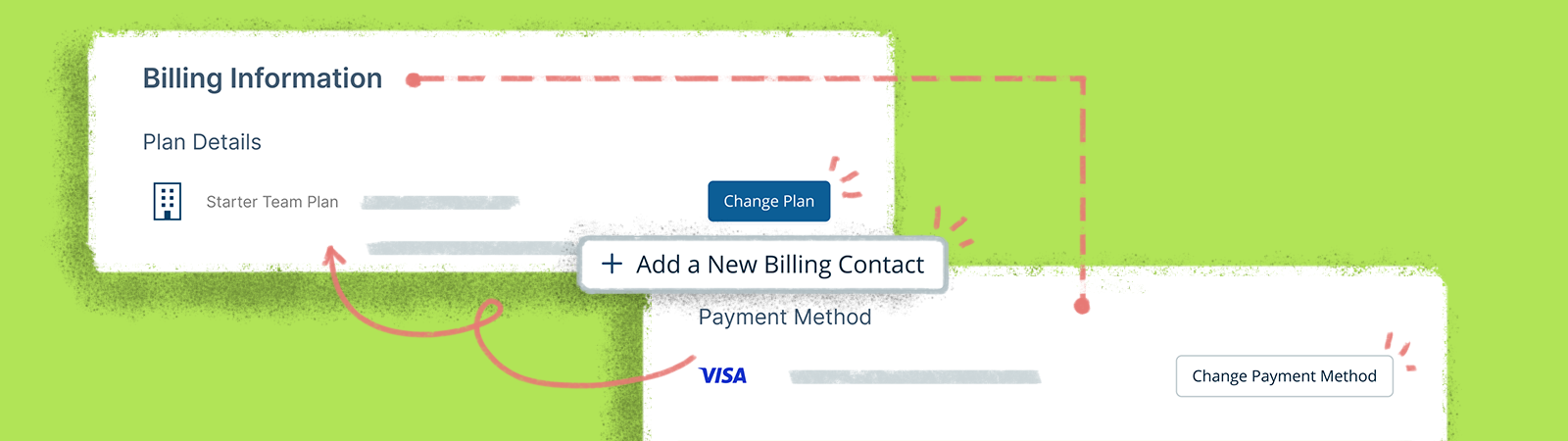
Updating Billing Details
Follow the instructions given below to view and/or change the billing details of your account.
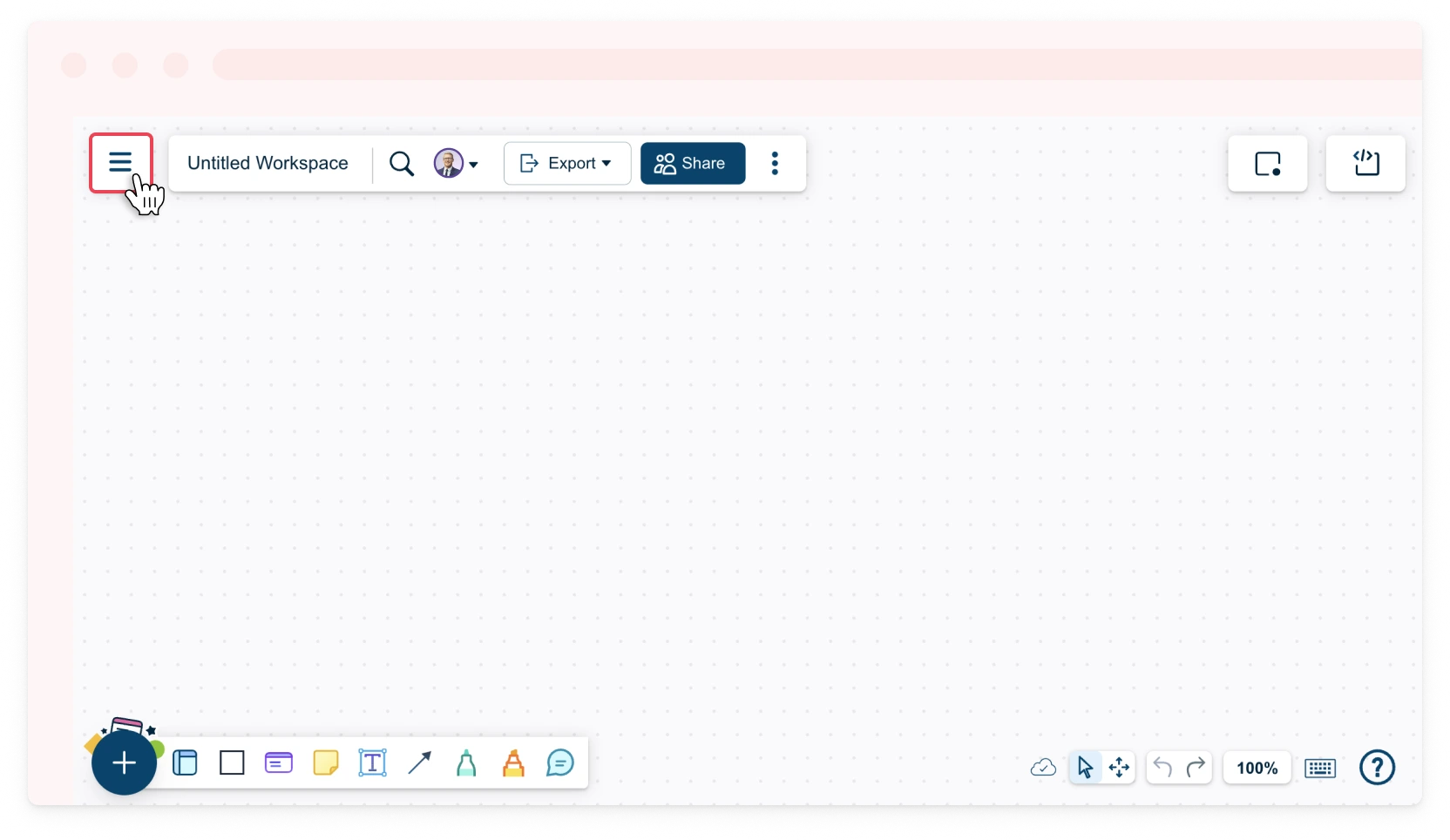
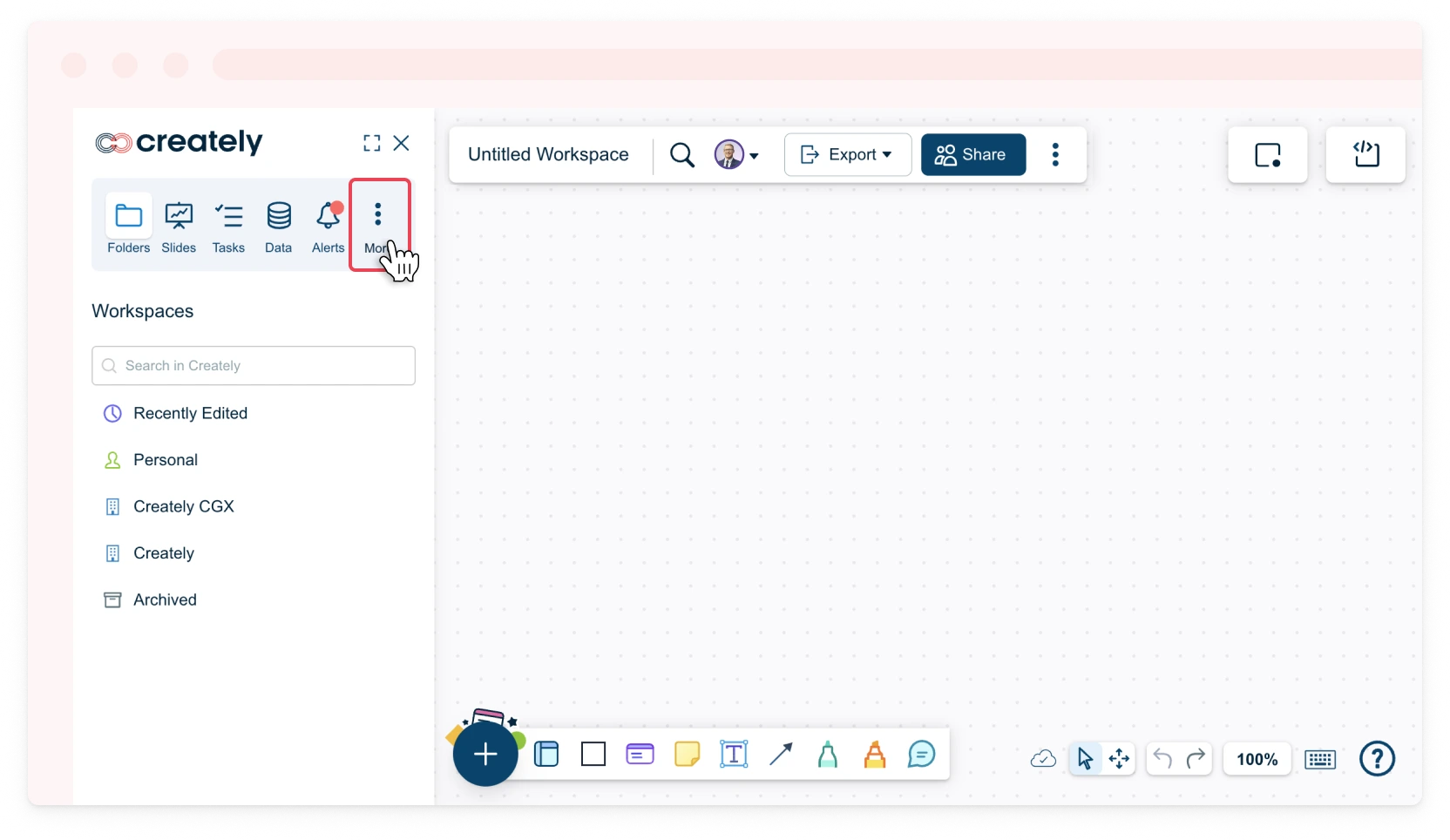
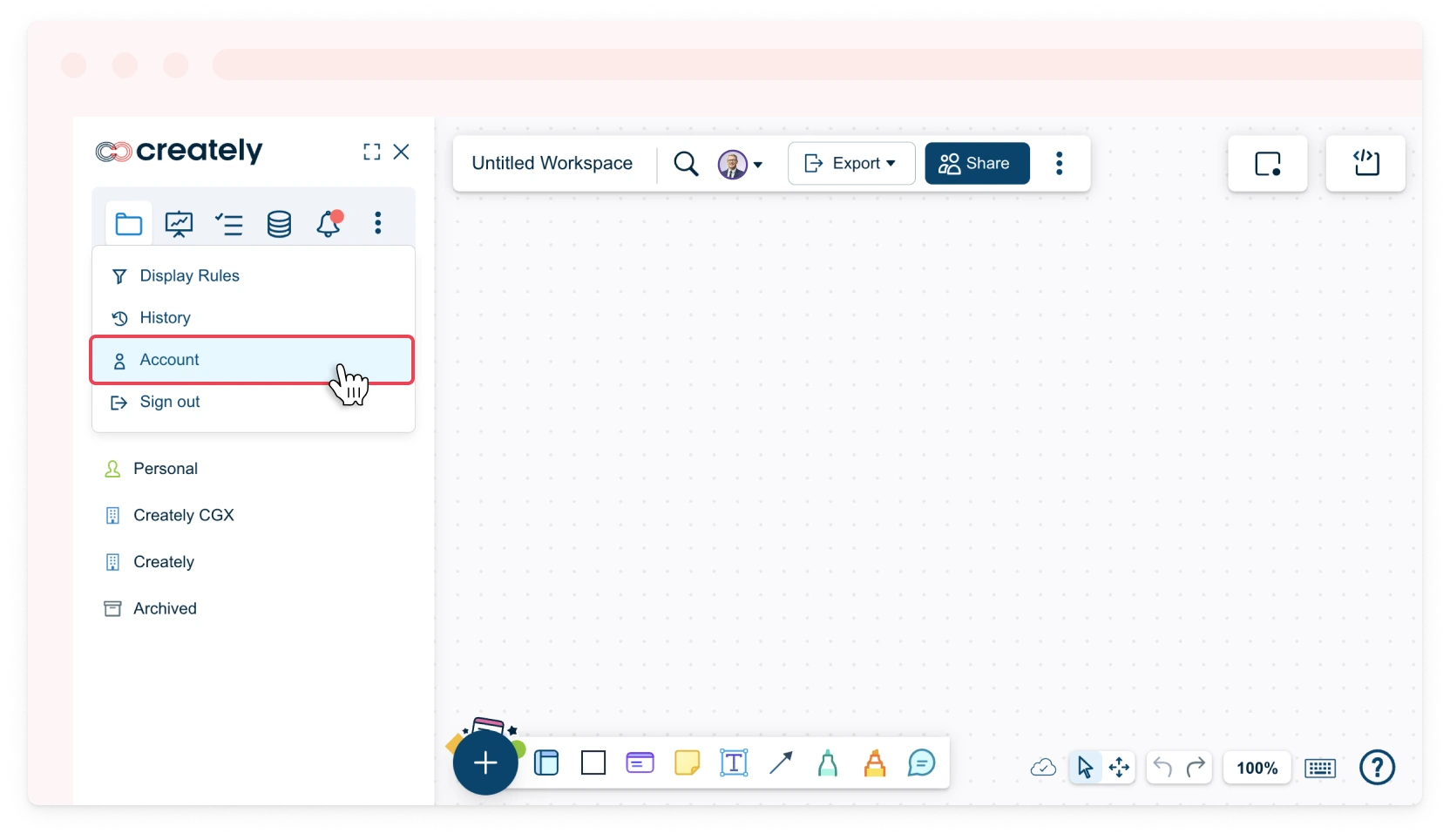
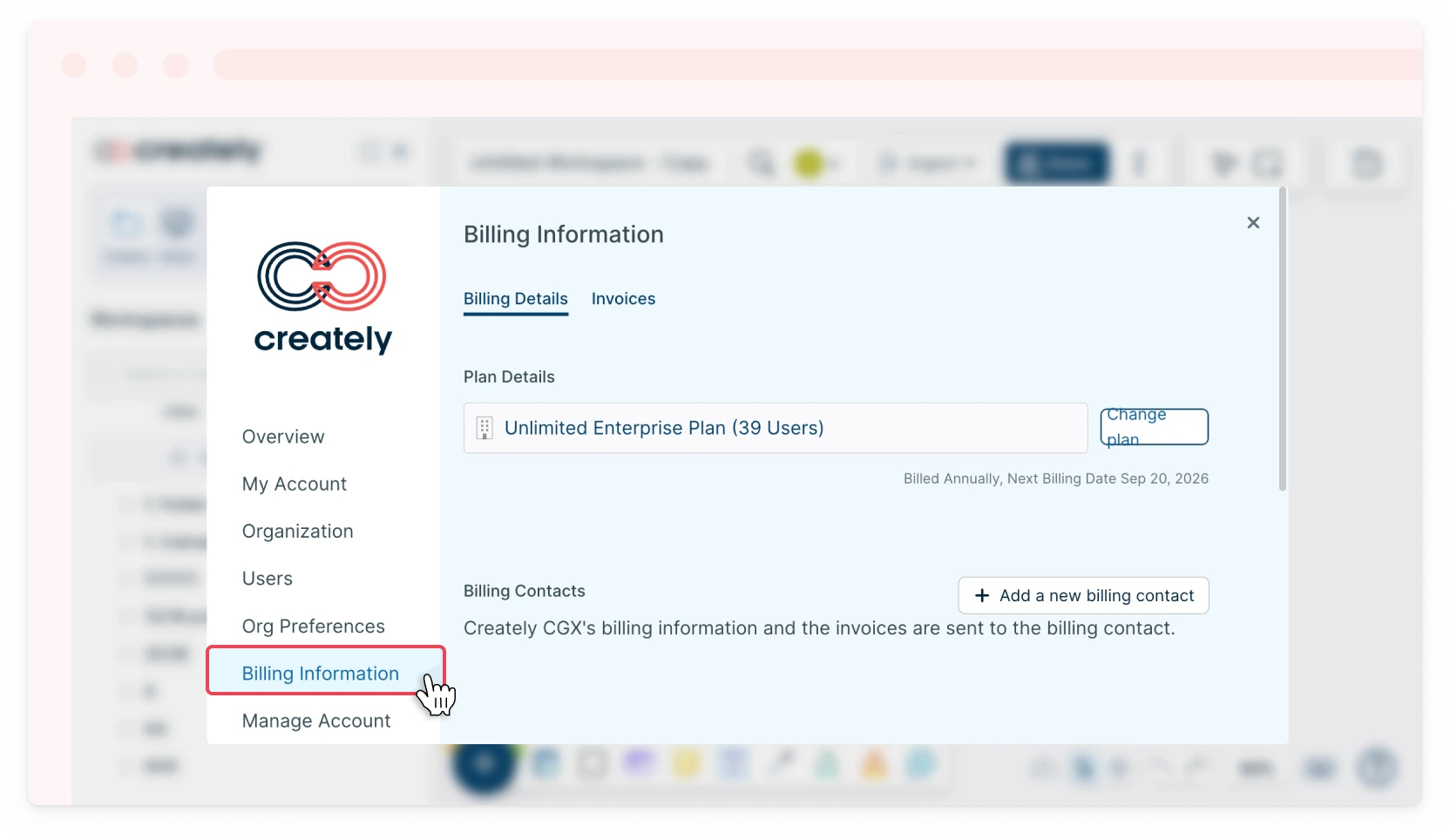
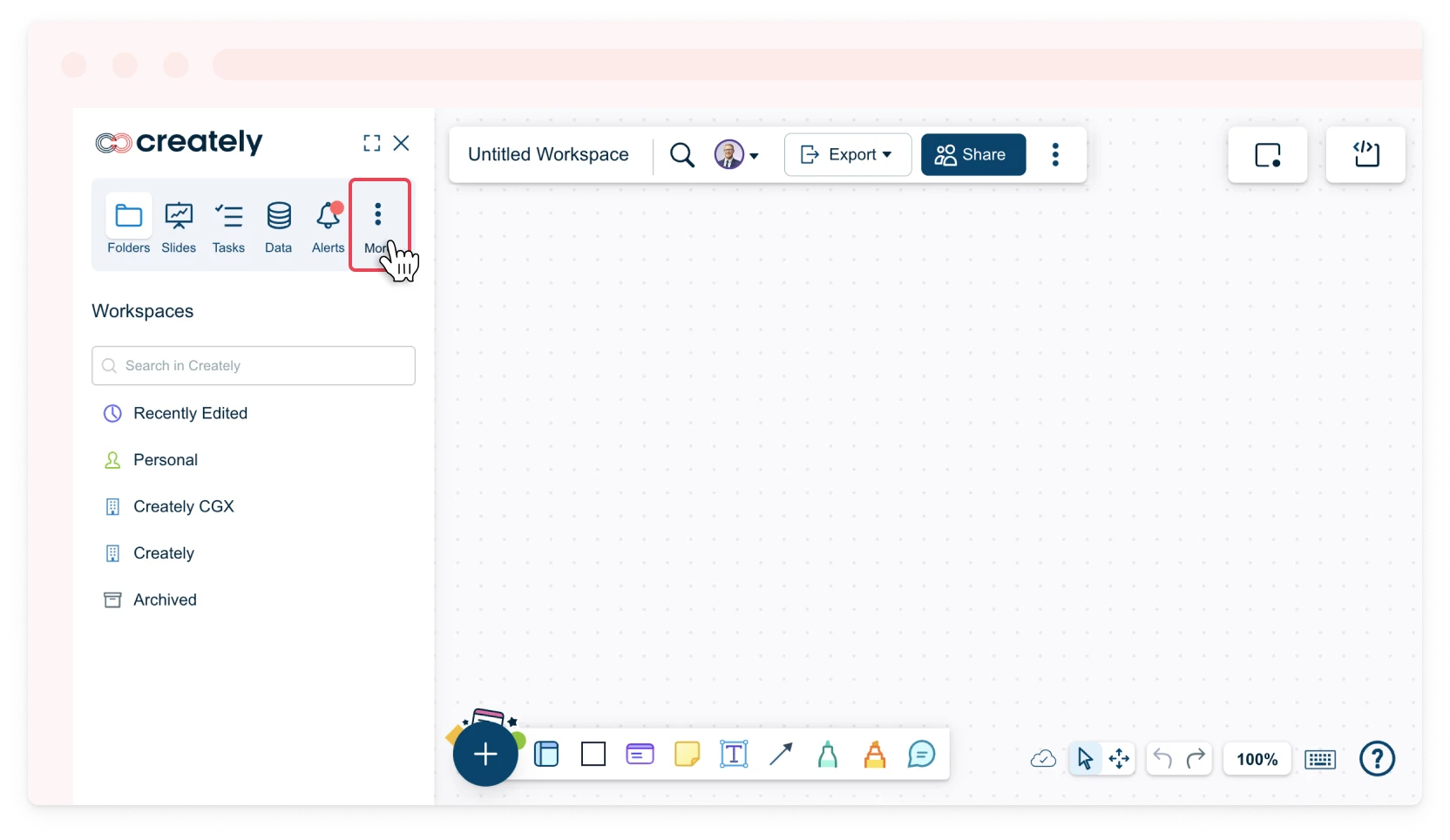
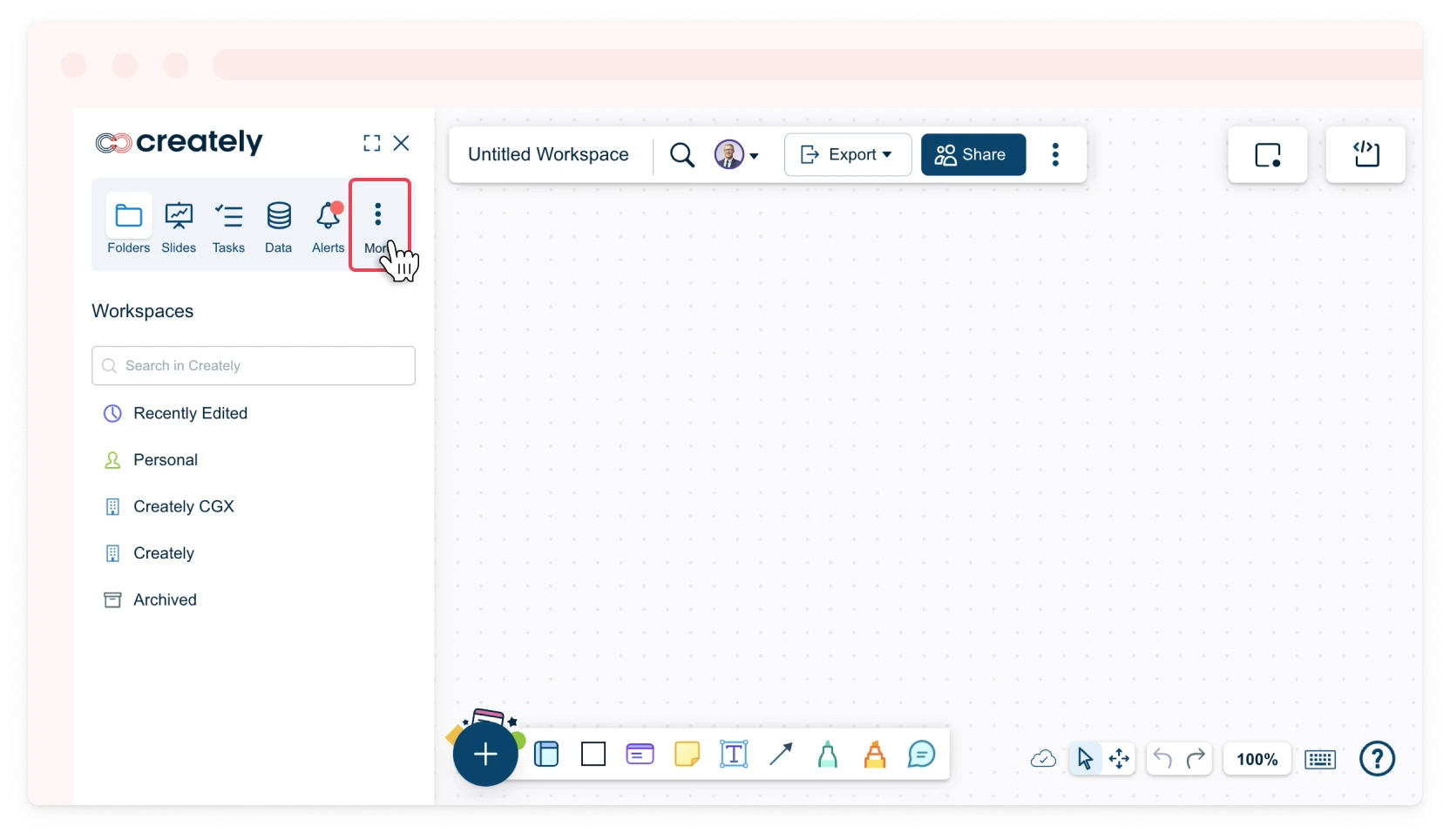
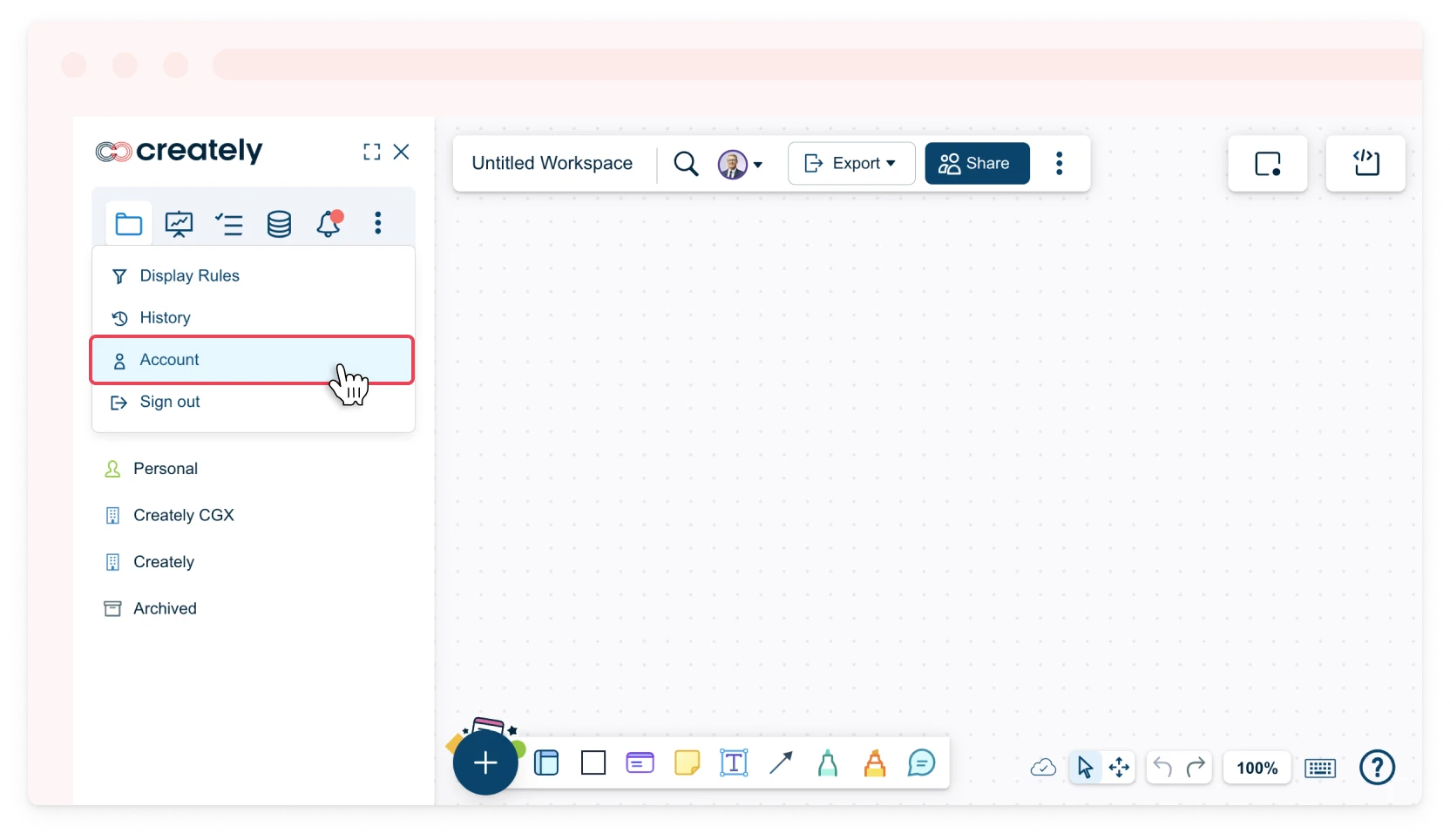
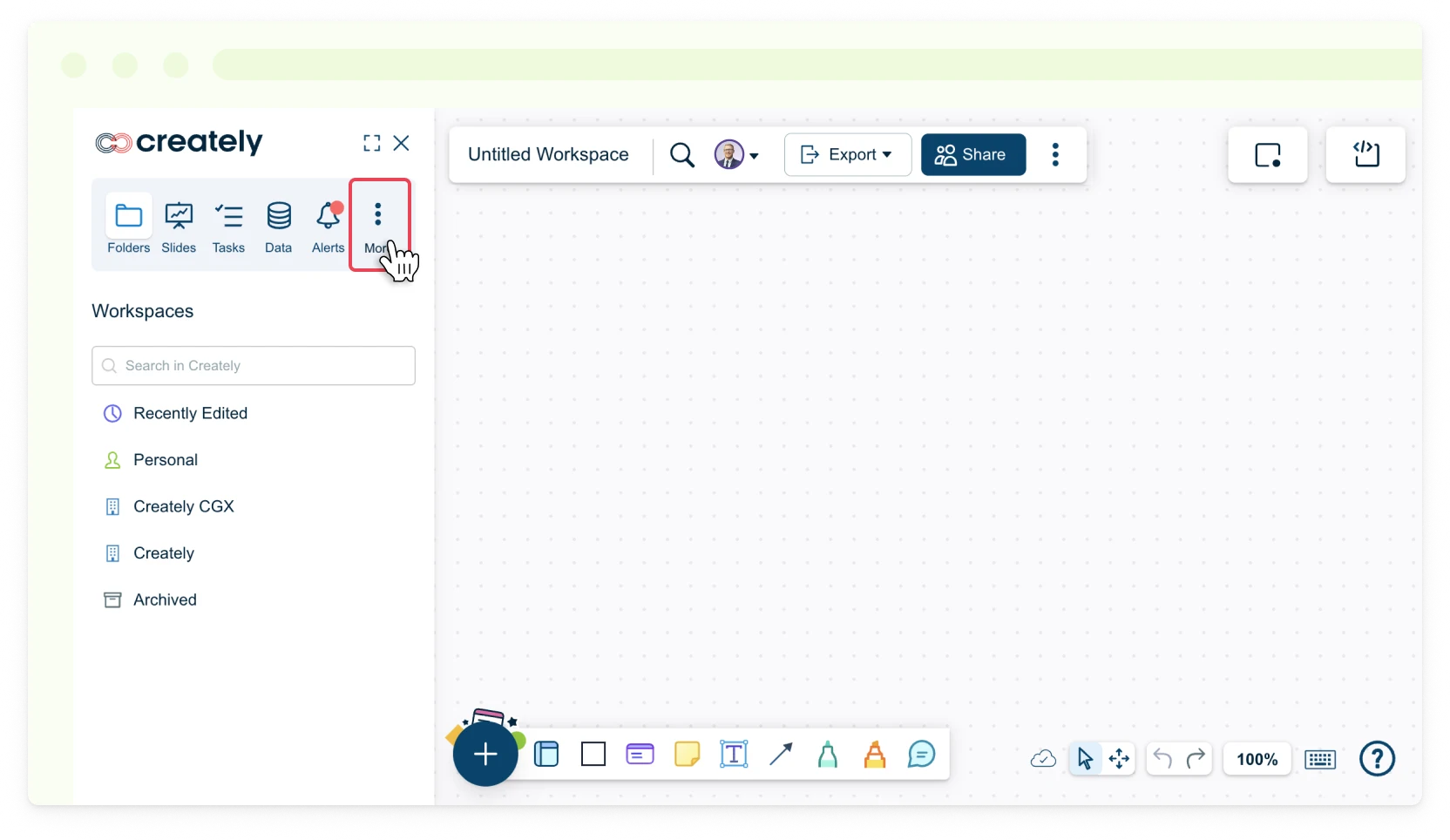
- Toggle the sidebar on the left-hand side of the canvas and select More → Account or in the dashboard view, click Settings → Account next to your username.
- Select the Billing Information tab.
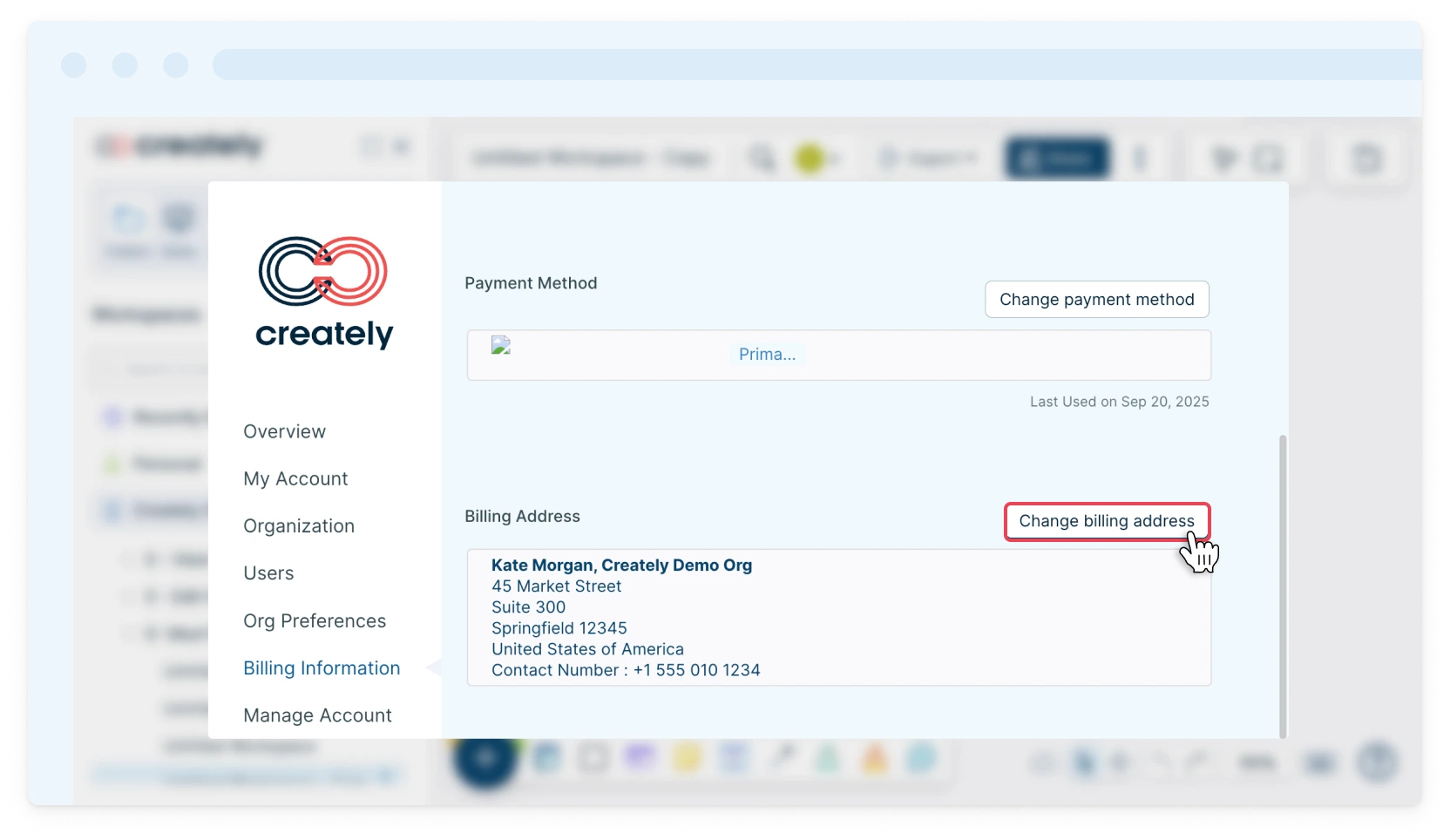
How to Add or Change Your Billing Address
- Go to the Billing Address section under Billing Details.
- Click Change Billing Address.
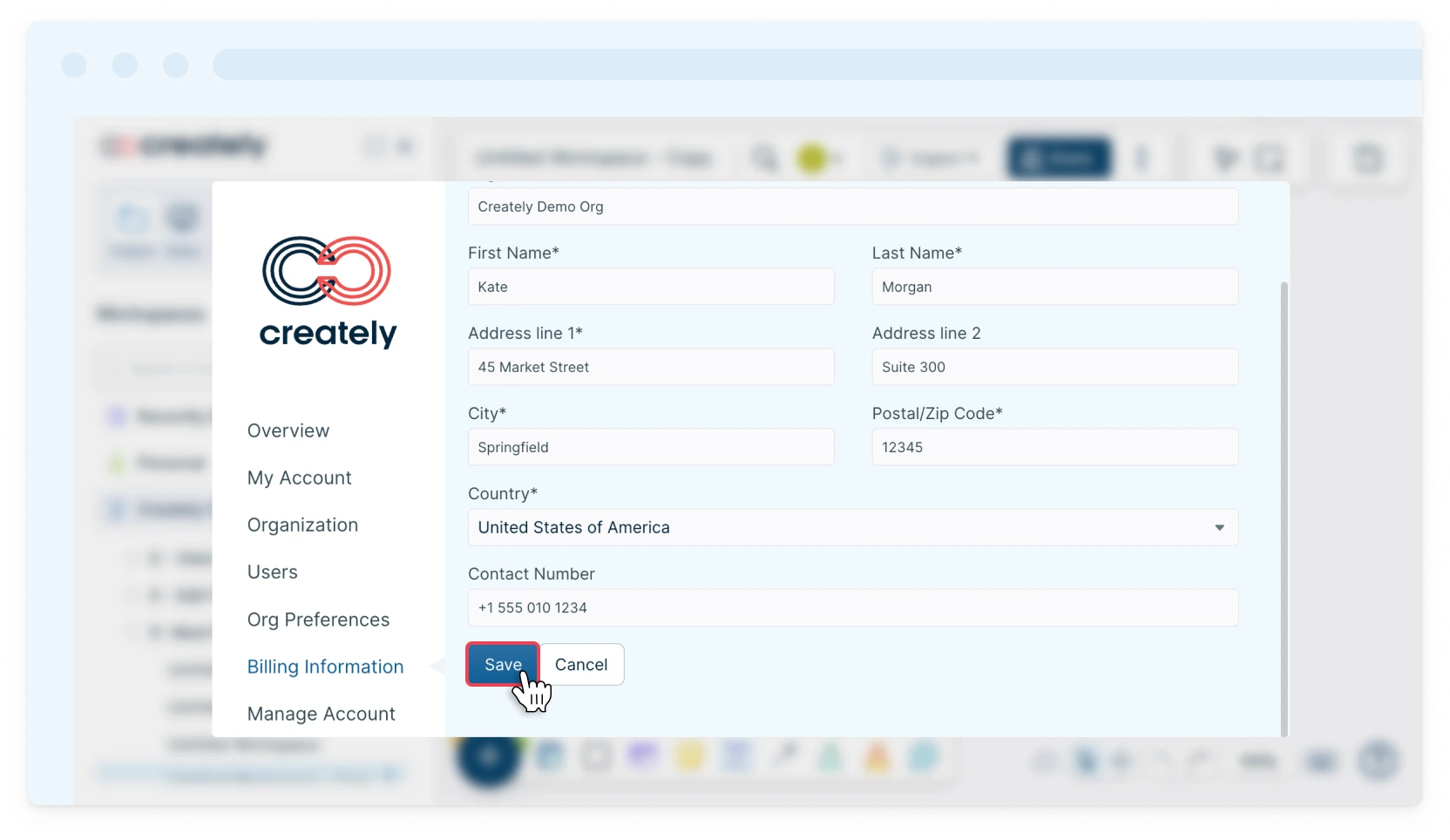
- Enter/edit your details.
- Click Save.
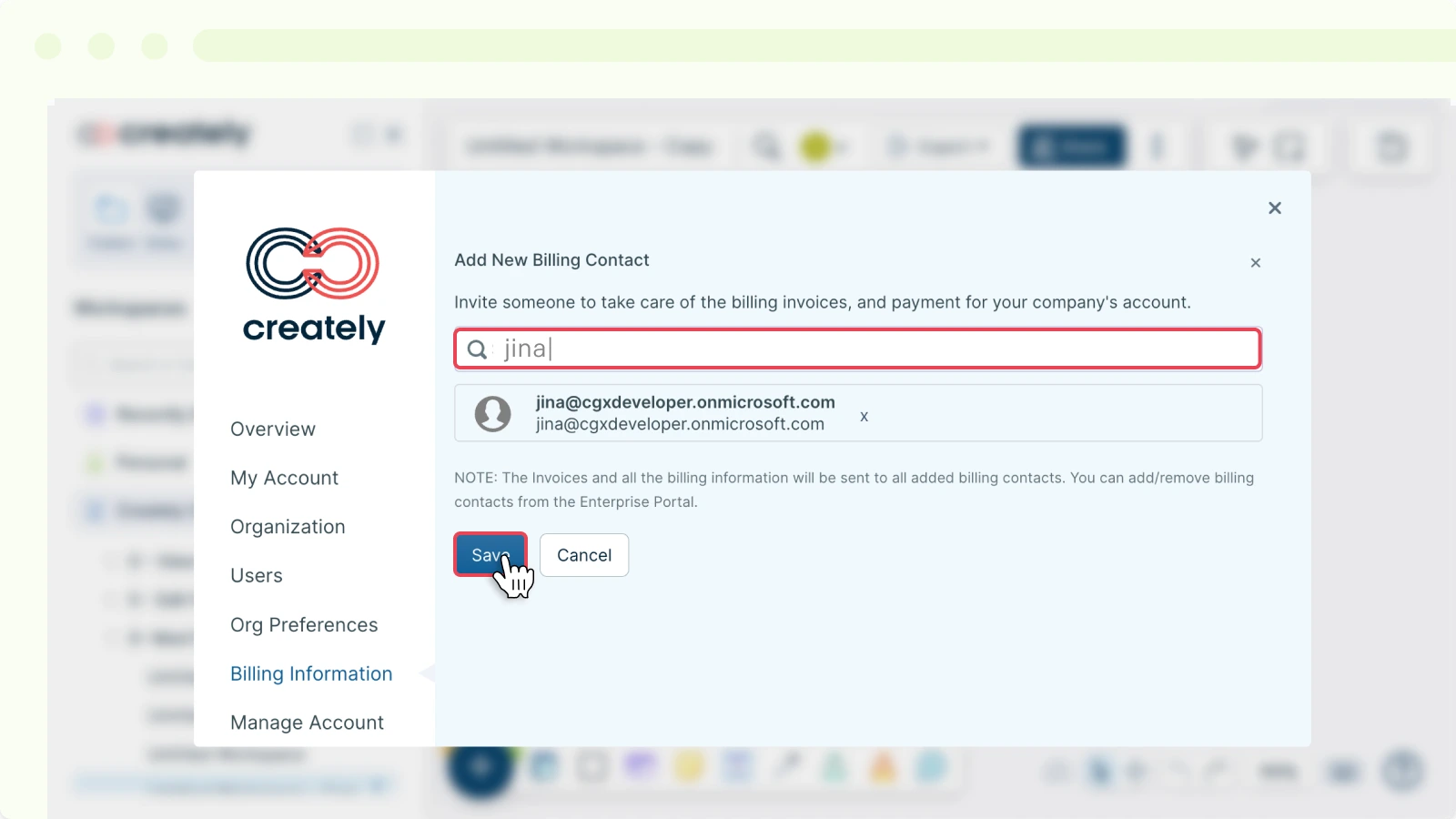
How to Add More Billing Contacts
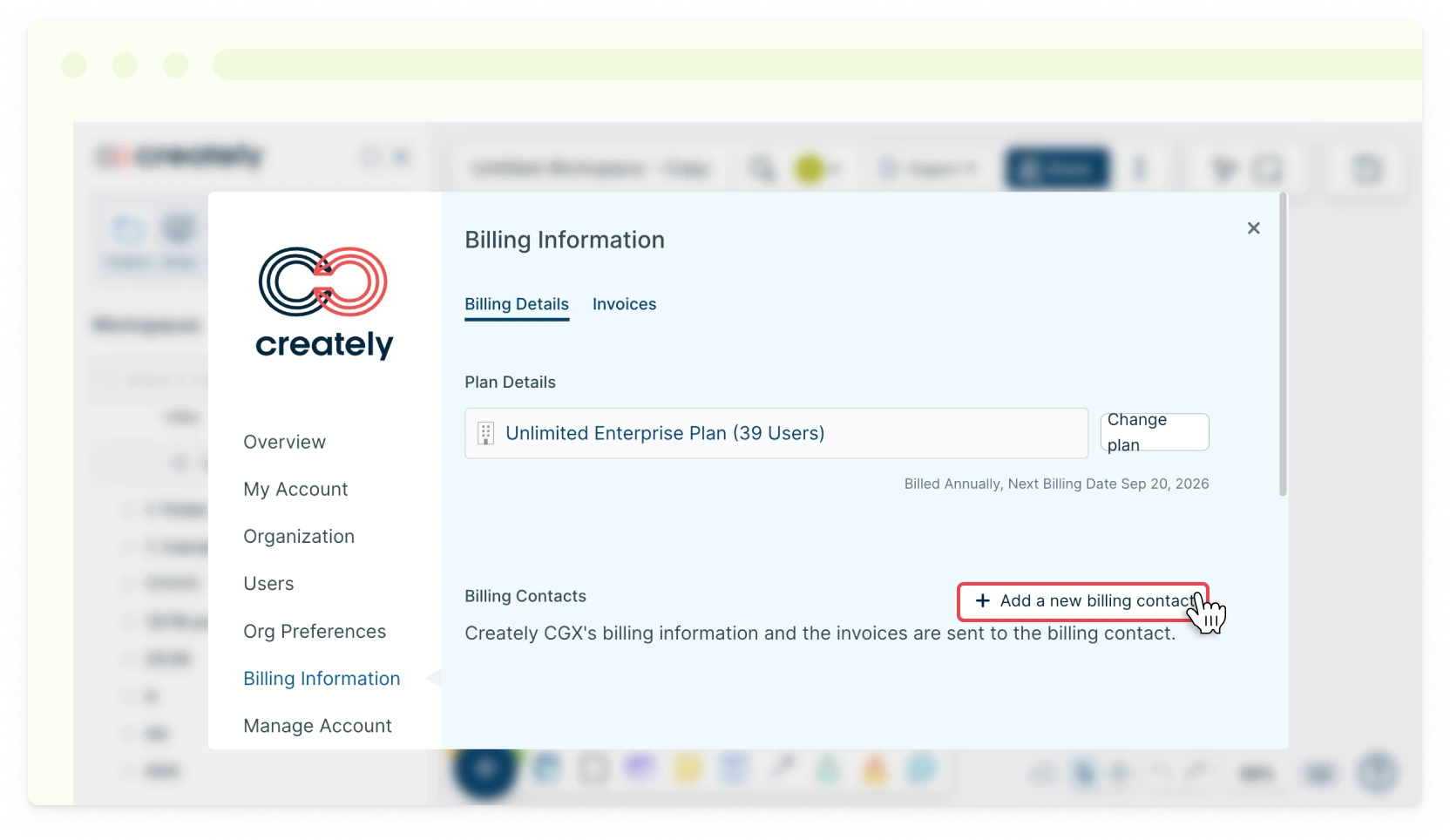
If you wish to send your invoices to multiple email addresses, you can simply enter more addresses in the Billing Contacts section.
- Click Add a New Billing Contact.
- Enter the alternative email address.
- Click Save.
If you are adding multiple addresses, remember to add them one by one separated with a comma.
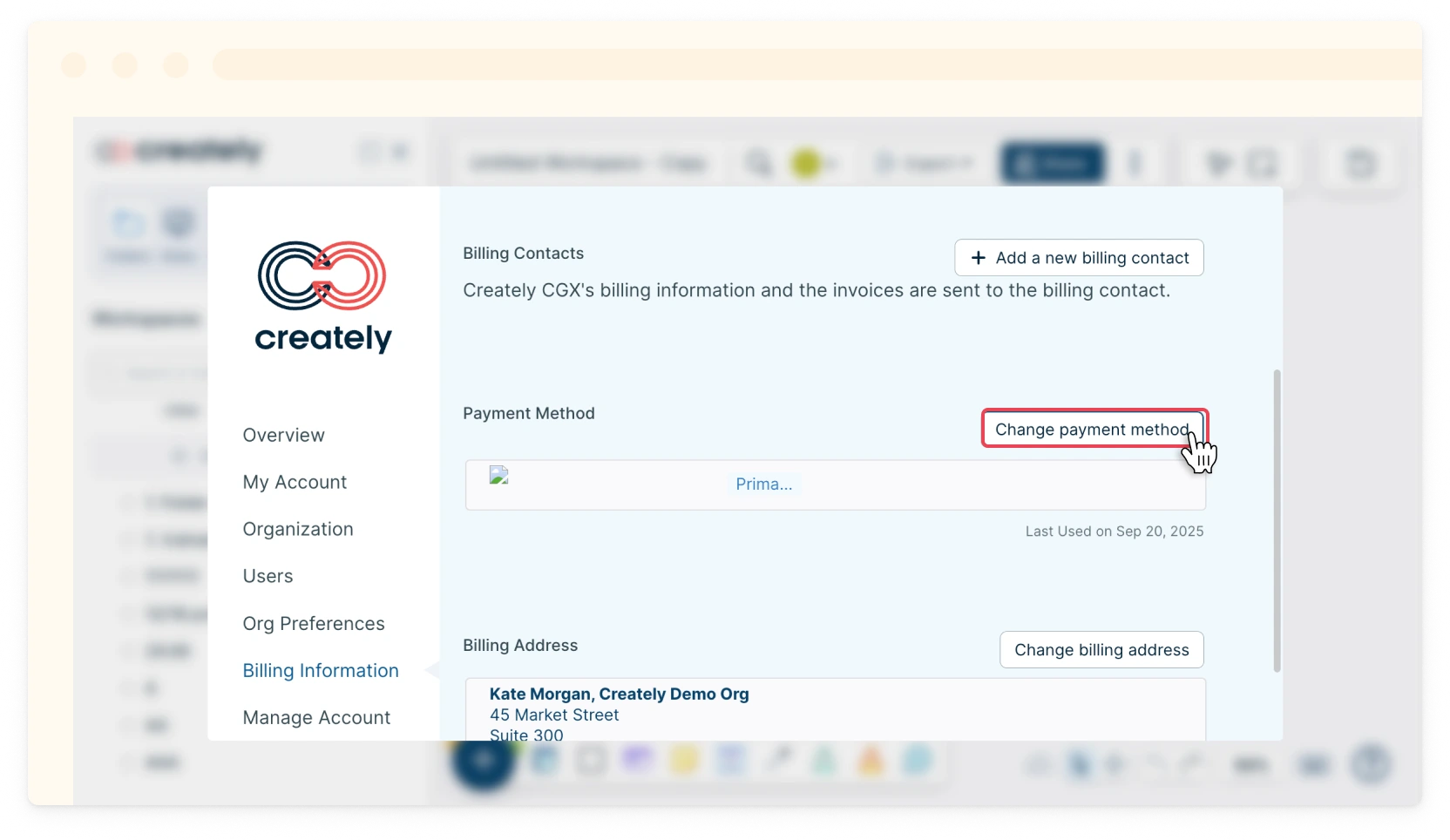
How to Add/Change a Payment Method
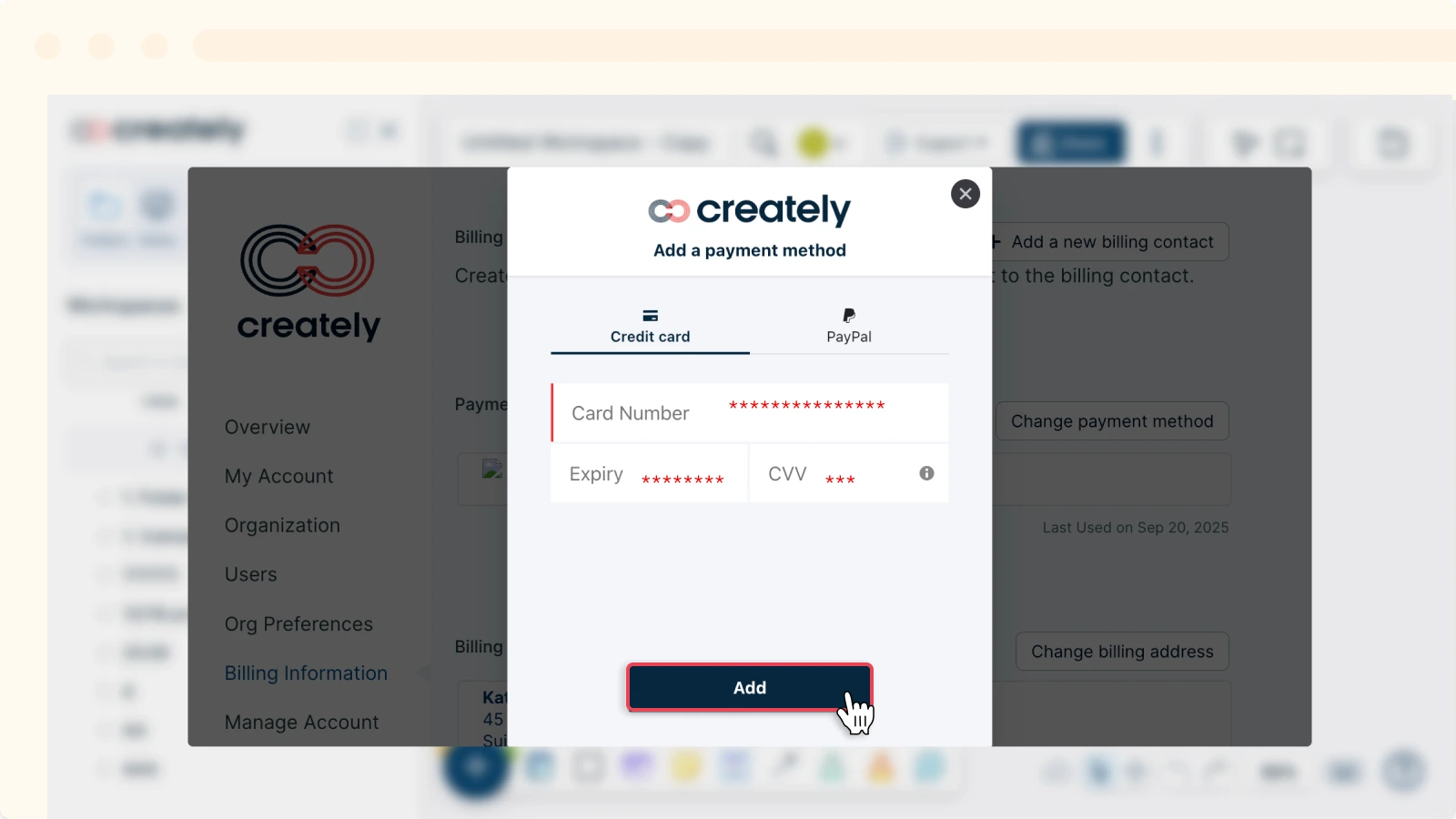
Add a new credit card or PayPal in the Payment Method section under Billing Details.
- Click Change Payment Method.
- Enter your credit card or PayPal information.
- Click Add.
You could add more than one payment method and set up one as the primary payment method and the rest as backup payment methods.
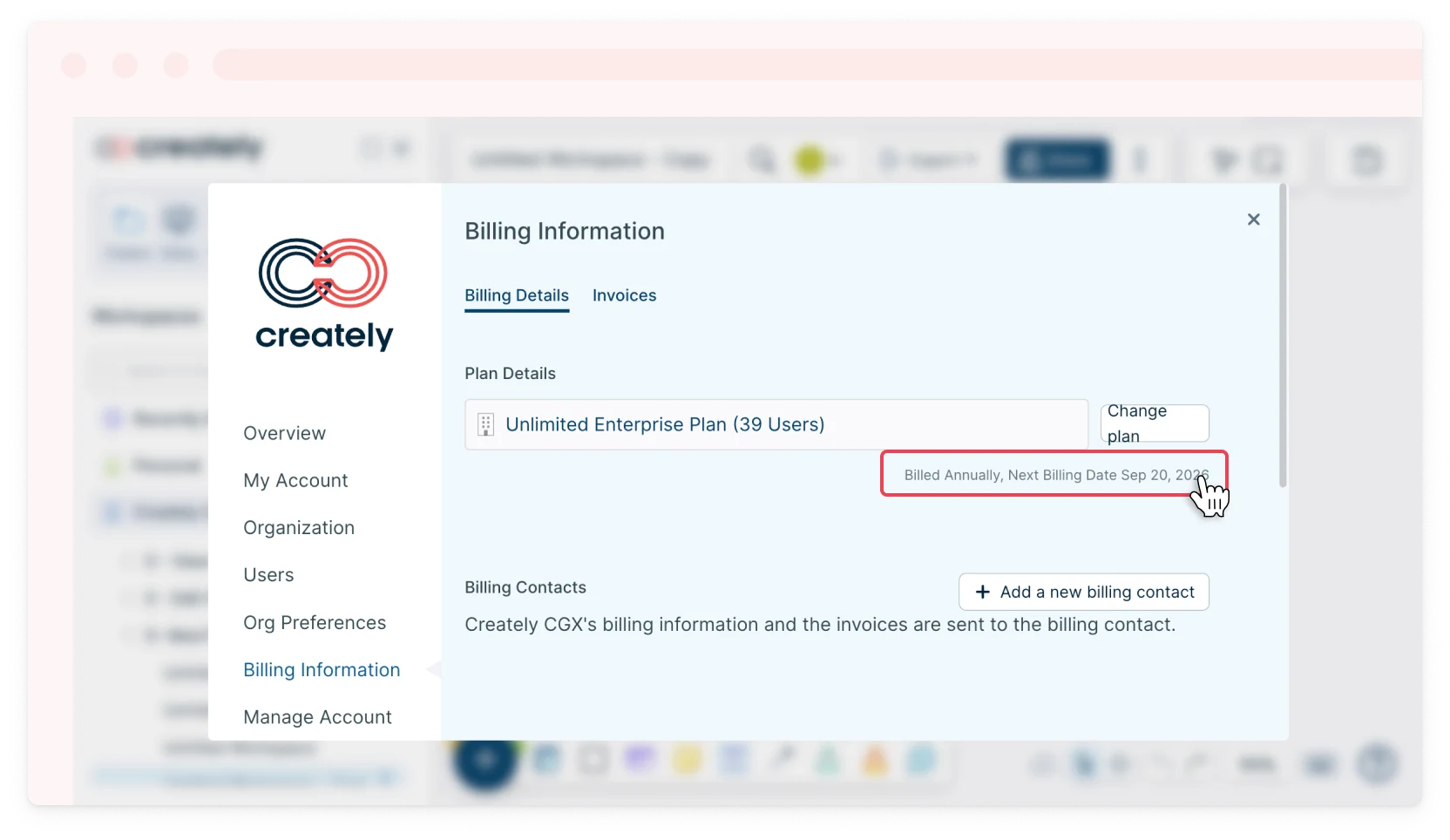
Where to Find the Renewal/Next Billing Date
Your next billing date is shown under the Plan Details section in the Billing Details tab.
How to View Your Previous Invoices
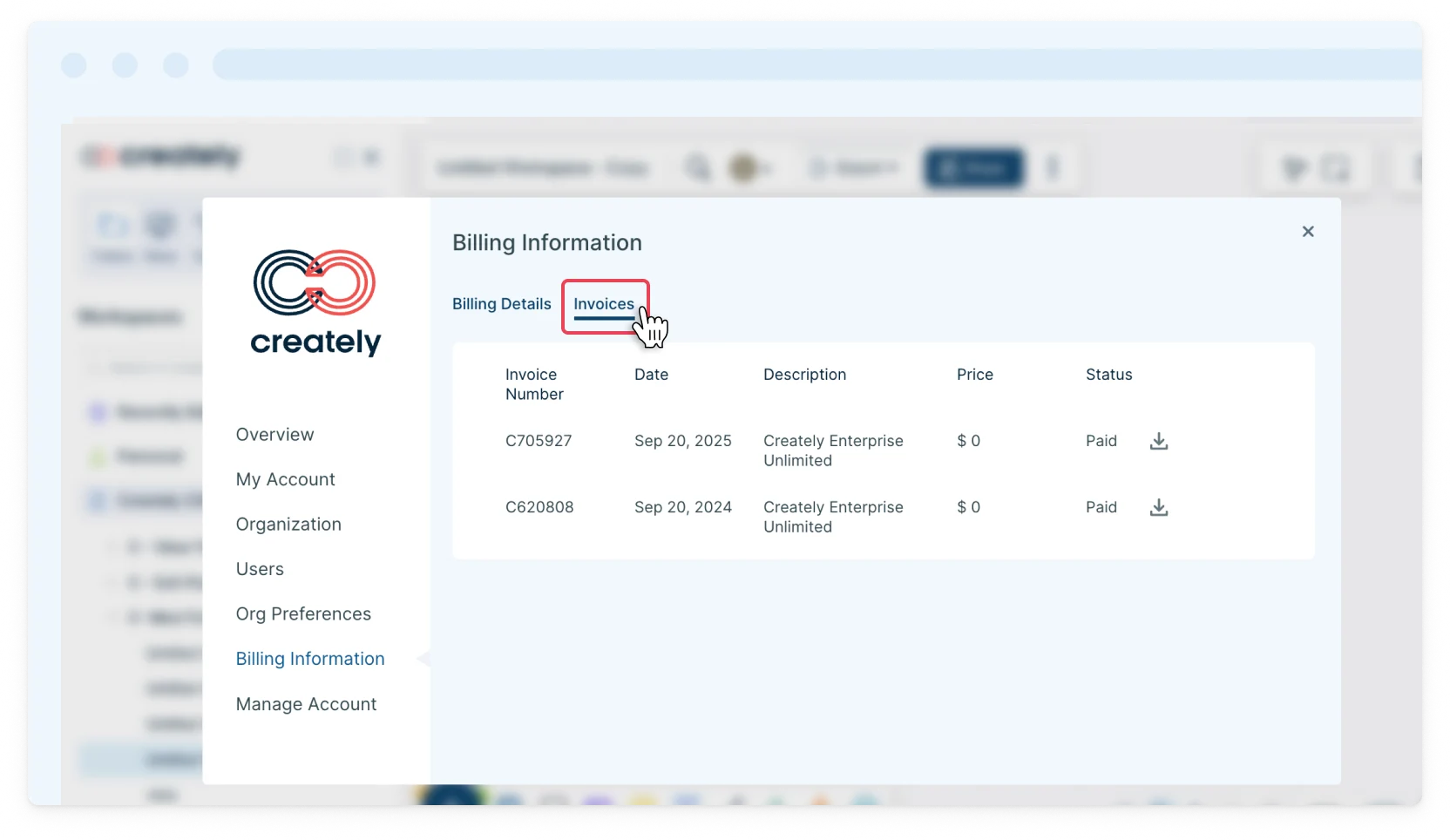
You can view and download all your previous invoices by switching to the Invoices tab under Billing Information.
Upgrading Your Subscription Plan
To upgrade your Personal subscription to a Team or Business plan,
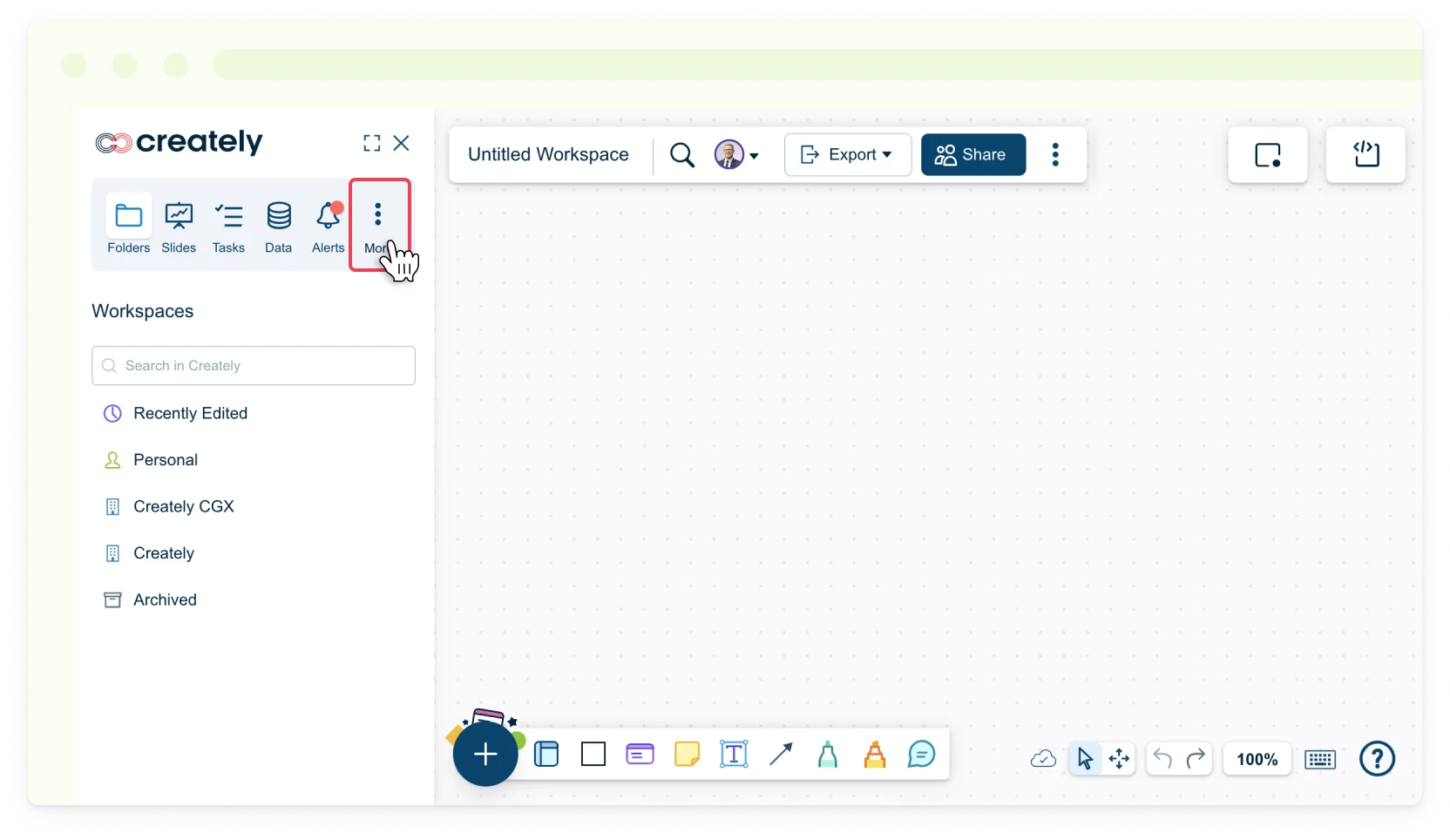
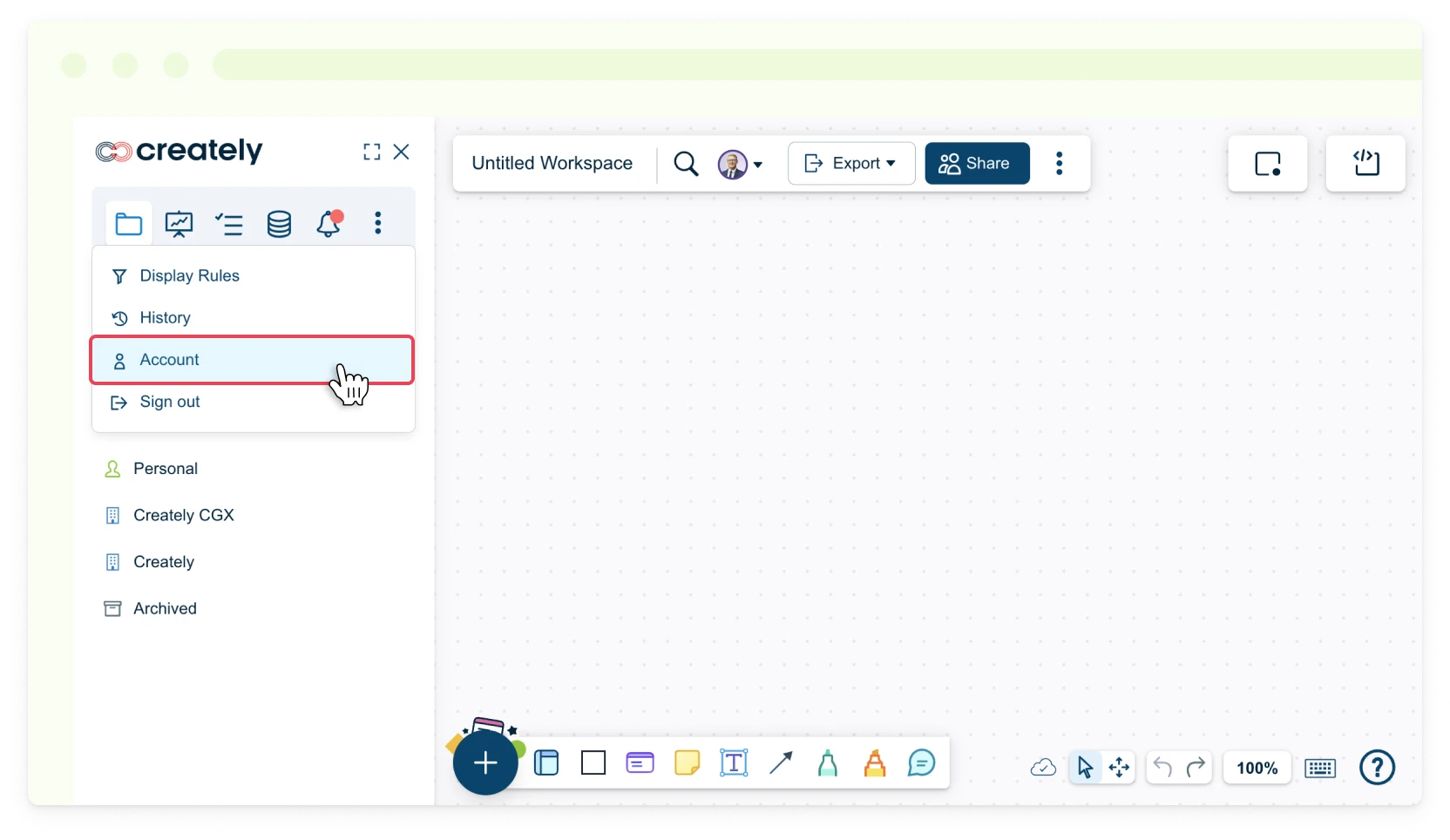
- Toggle the sidebar on the left-hand side of the canvas and select More → Account or in the dashboard view, click Settings → Account next to your username.
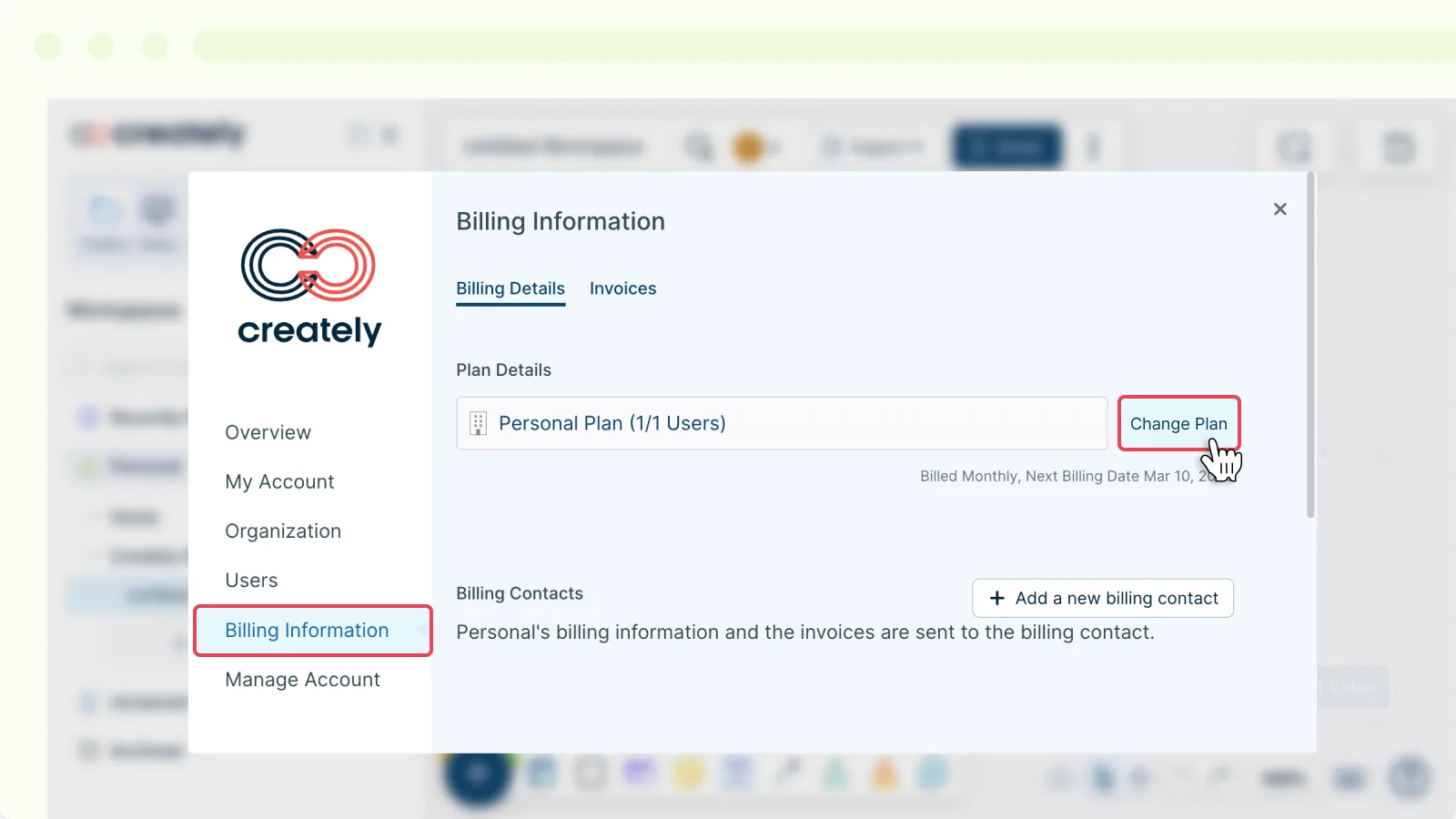
- Select the Billing Information tab.
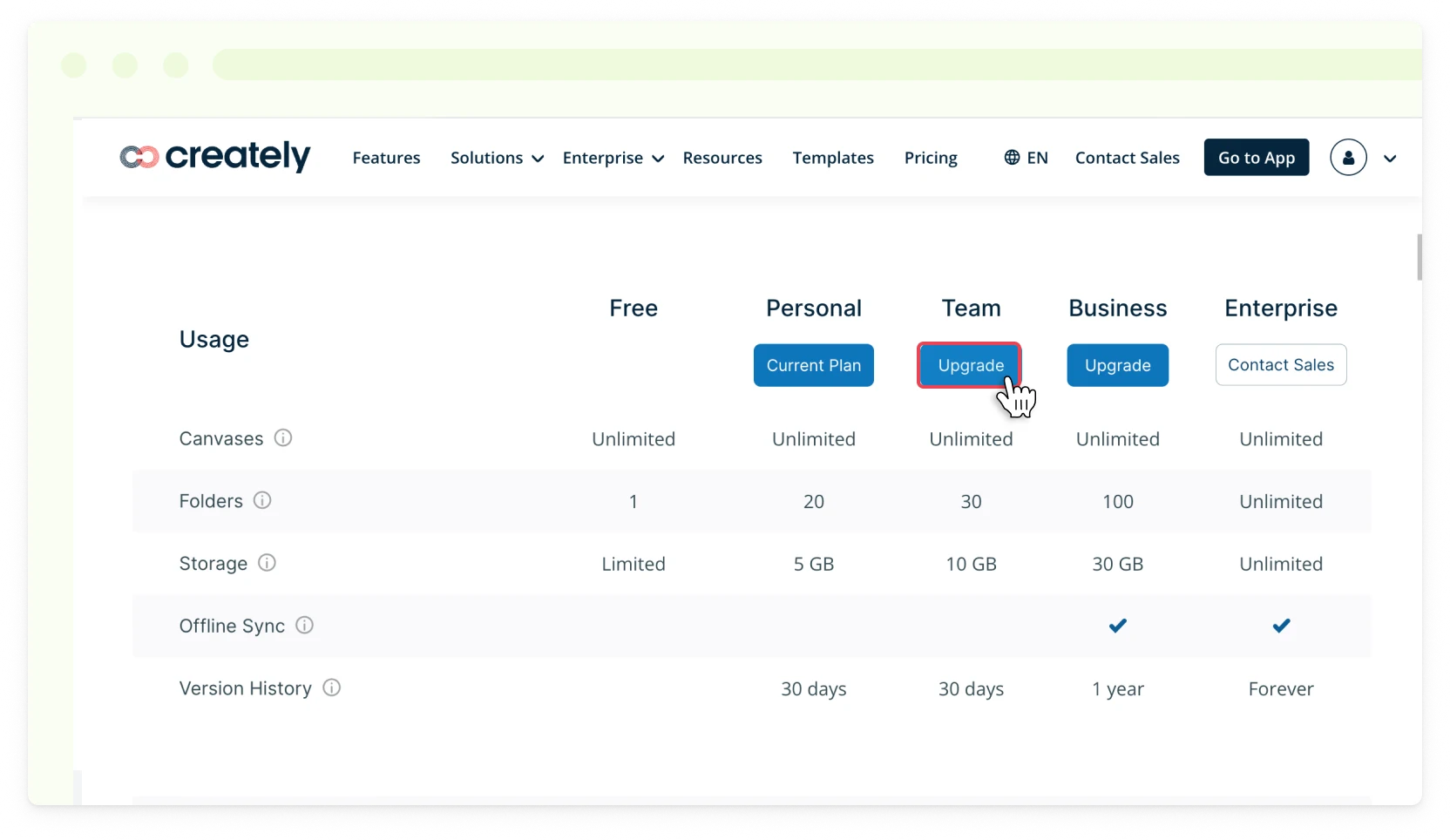
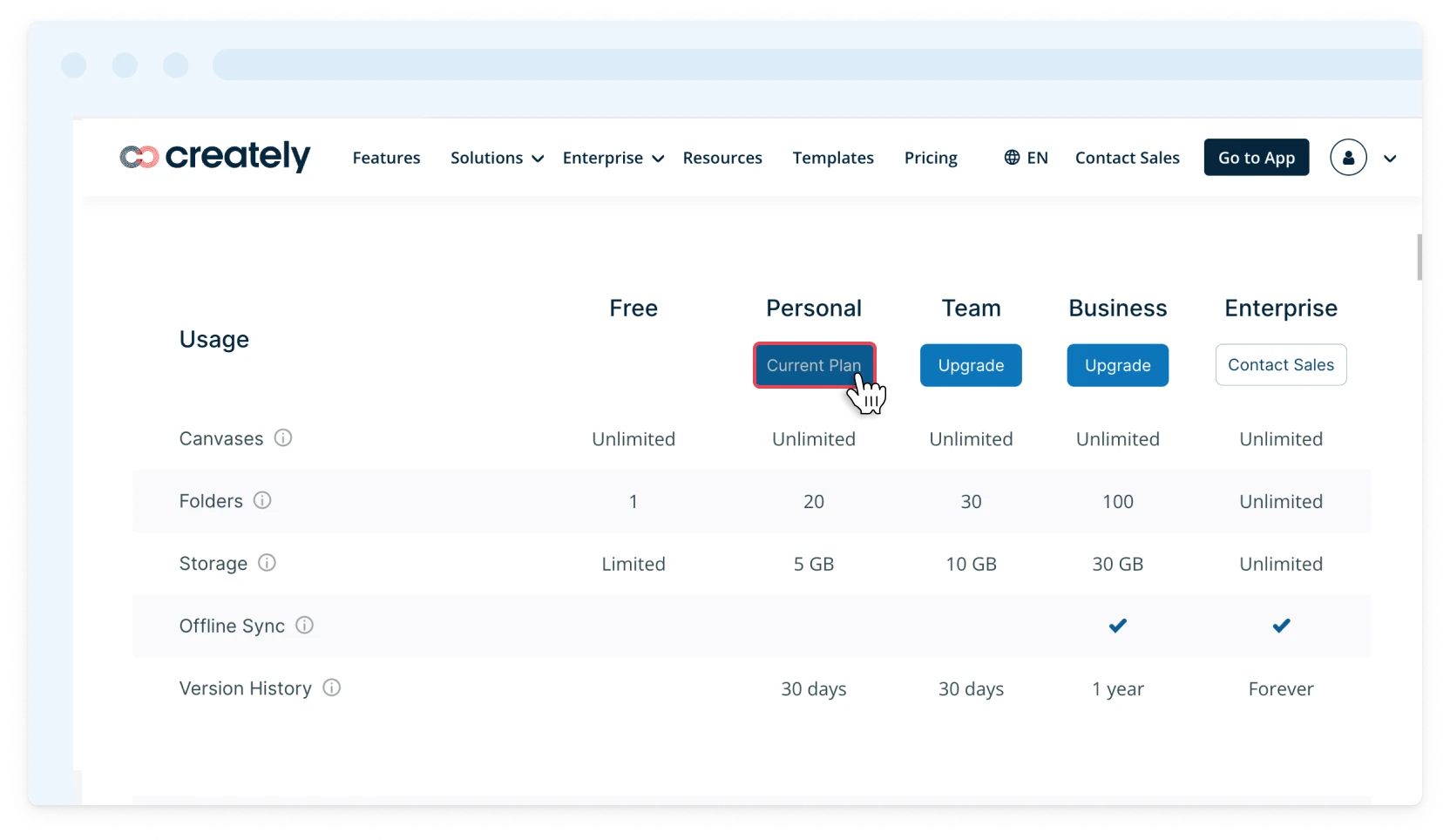
- Click Change Plan under Plan Details.
- Click the Upgrade button next to your preferred plan.
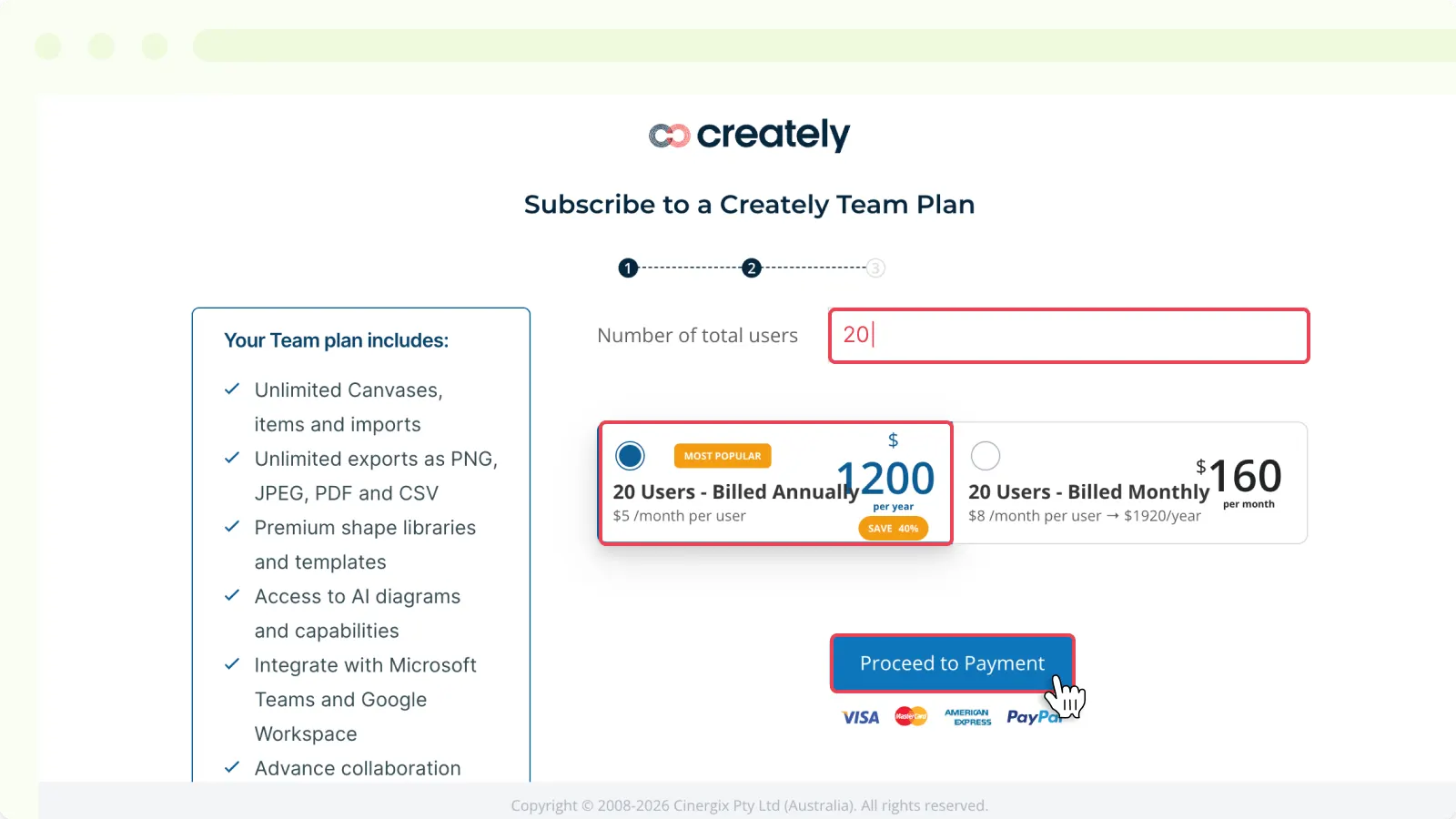
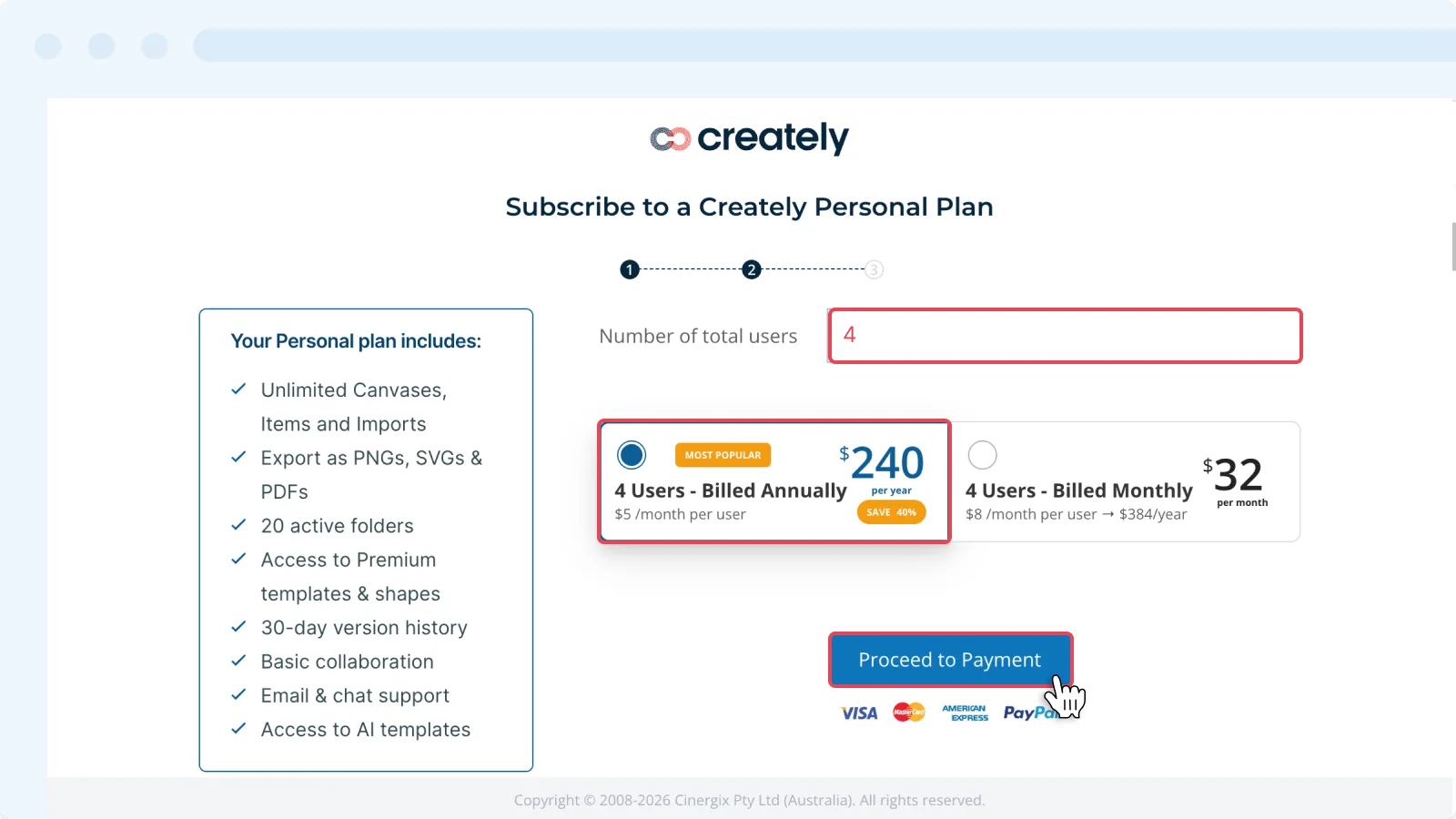
- Select the number of users (when upgrading to a Team plan).
- Select your preferred billing plan (Annually or Monthly).
- Click Proceed to Payment.
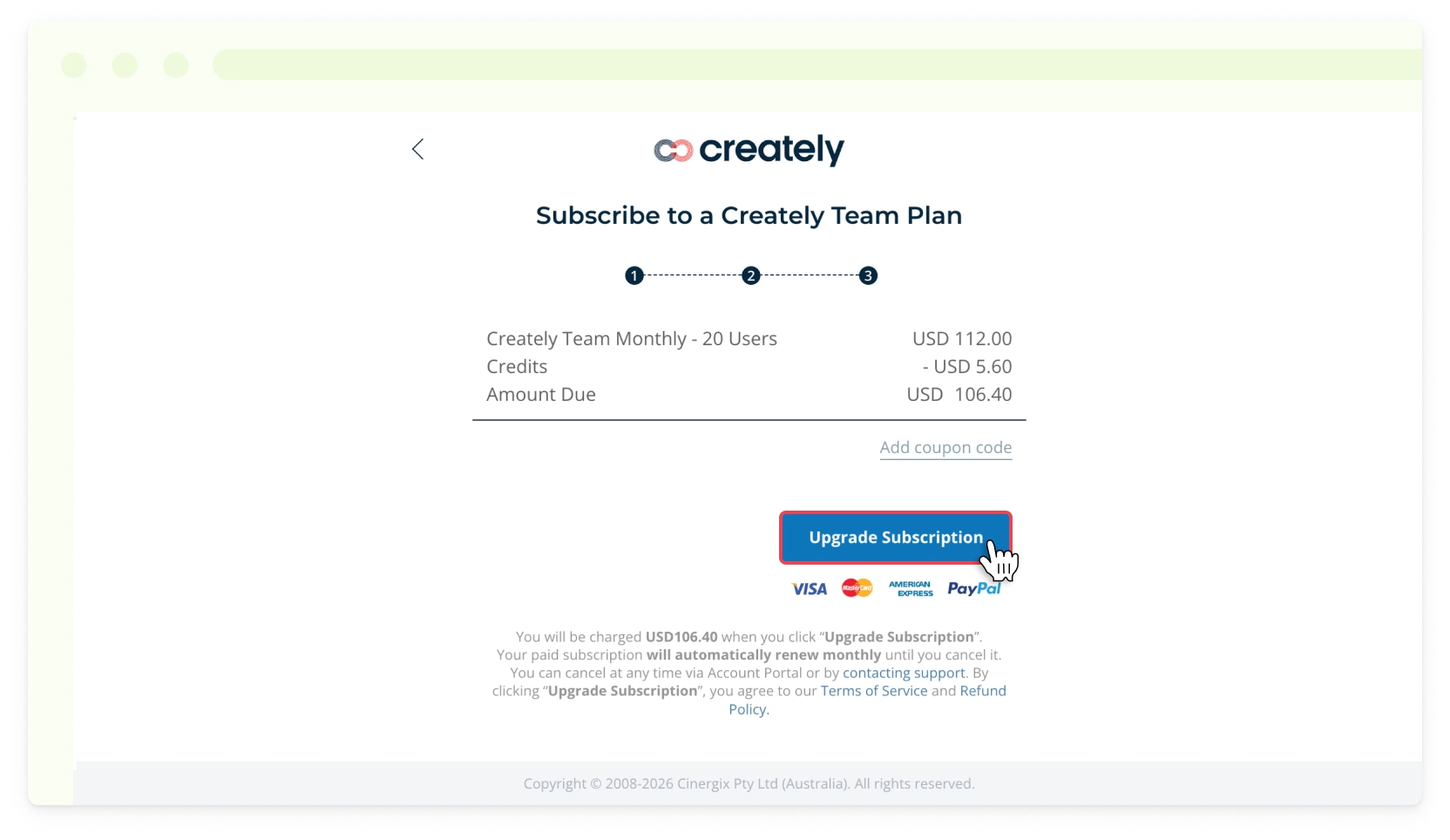
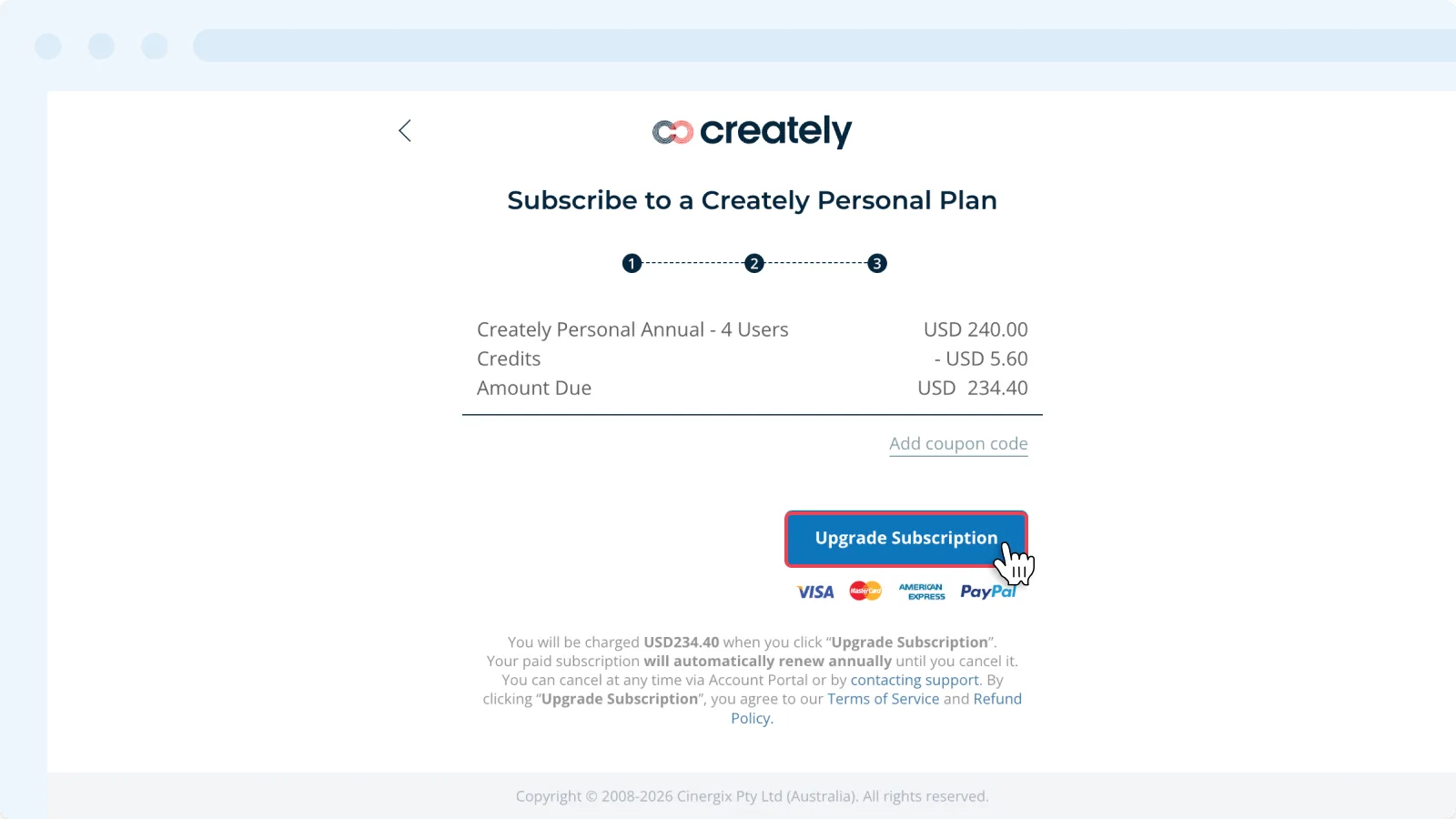
- Add coupon code (if available) and click Upgrade Subscription.
If you’re a Free user, upgrading to a Personal or Team Plan
- Toggle the sidebar on the left-hand side of the canvas and select More → Account or in the dashboard view, click Settings → Account next to your username.
- Select the Manage Account tab.
- Click Upgrade My Account.
- Click the Upgrade button next to your preferred plan.
- Select the number of users.
- Select your preferred billing plan (Annually or Monthly).
- Click Proceed to Payment.
- Add coupon code (if available) and click Upgrade Subscription.
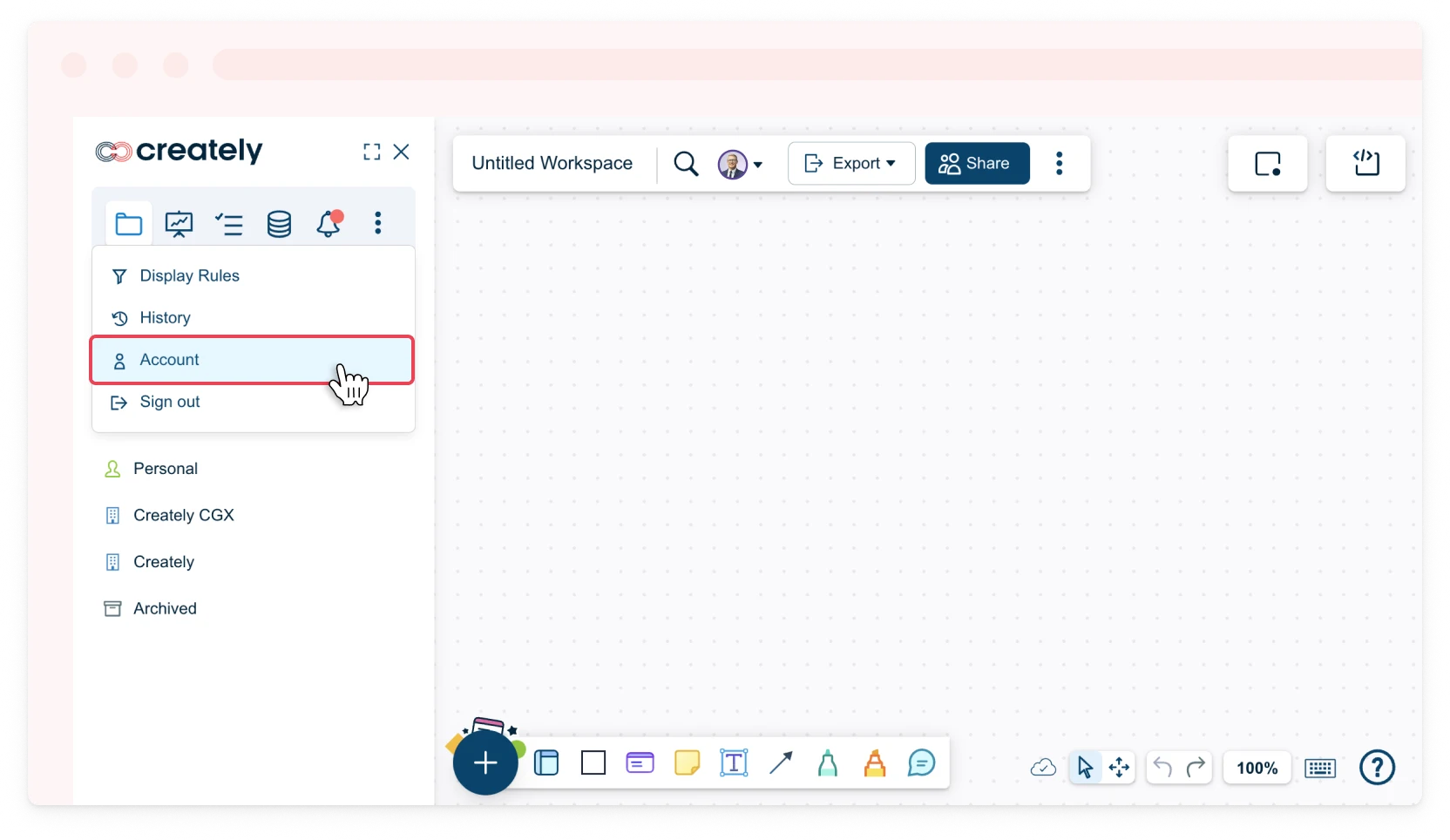
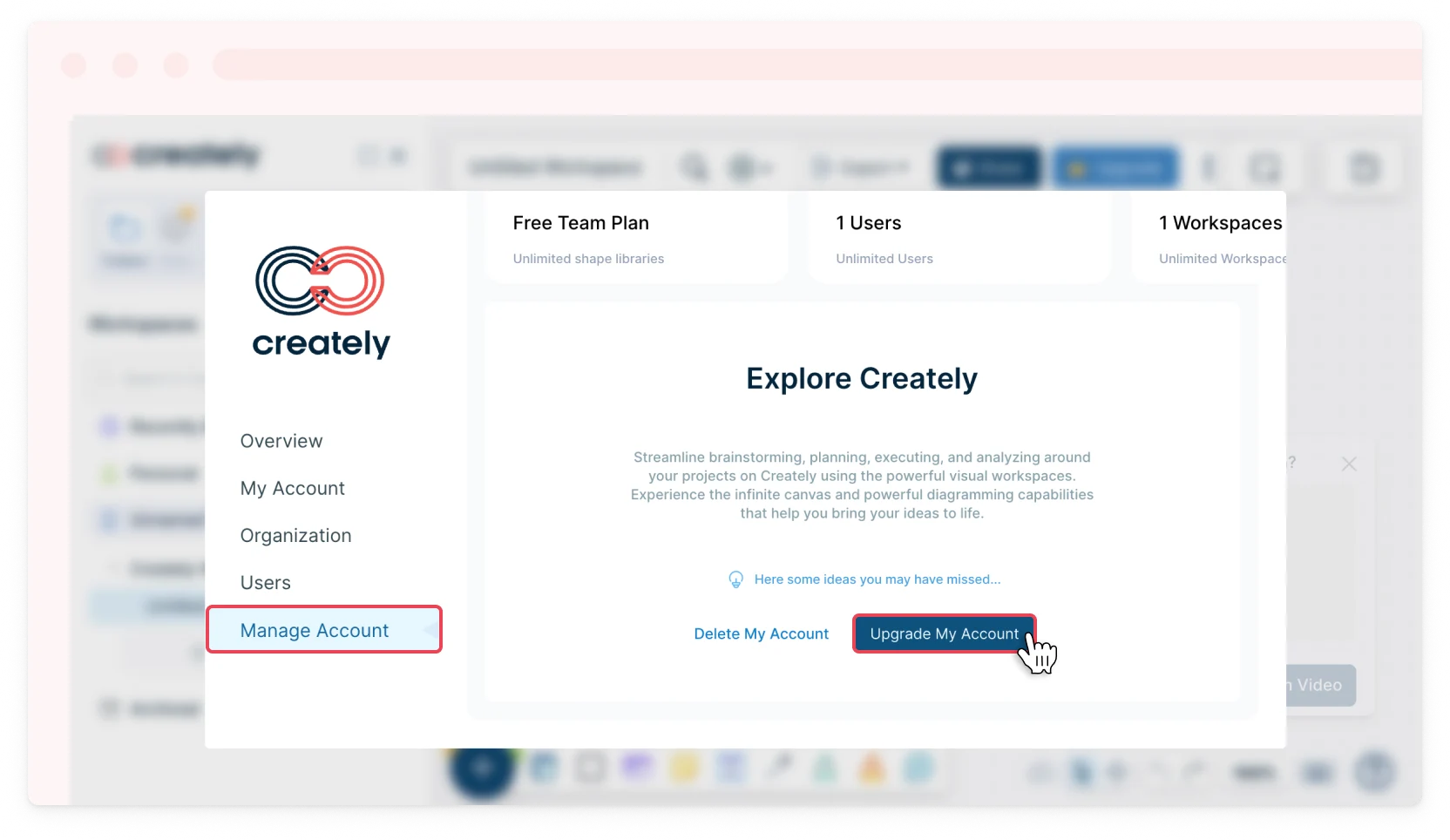
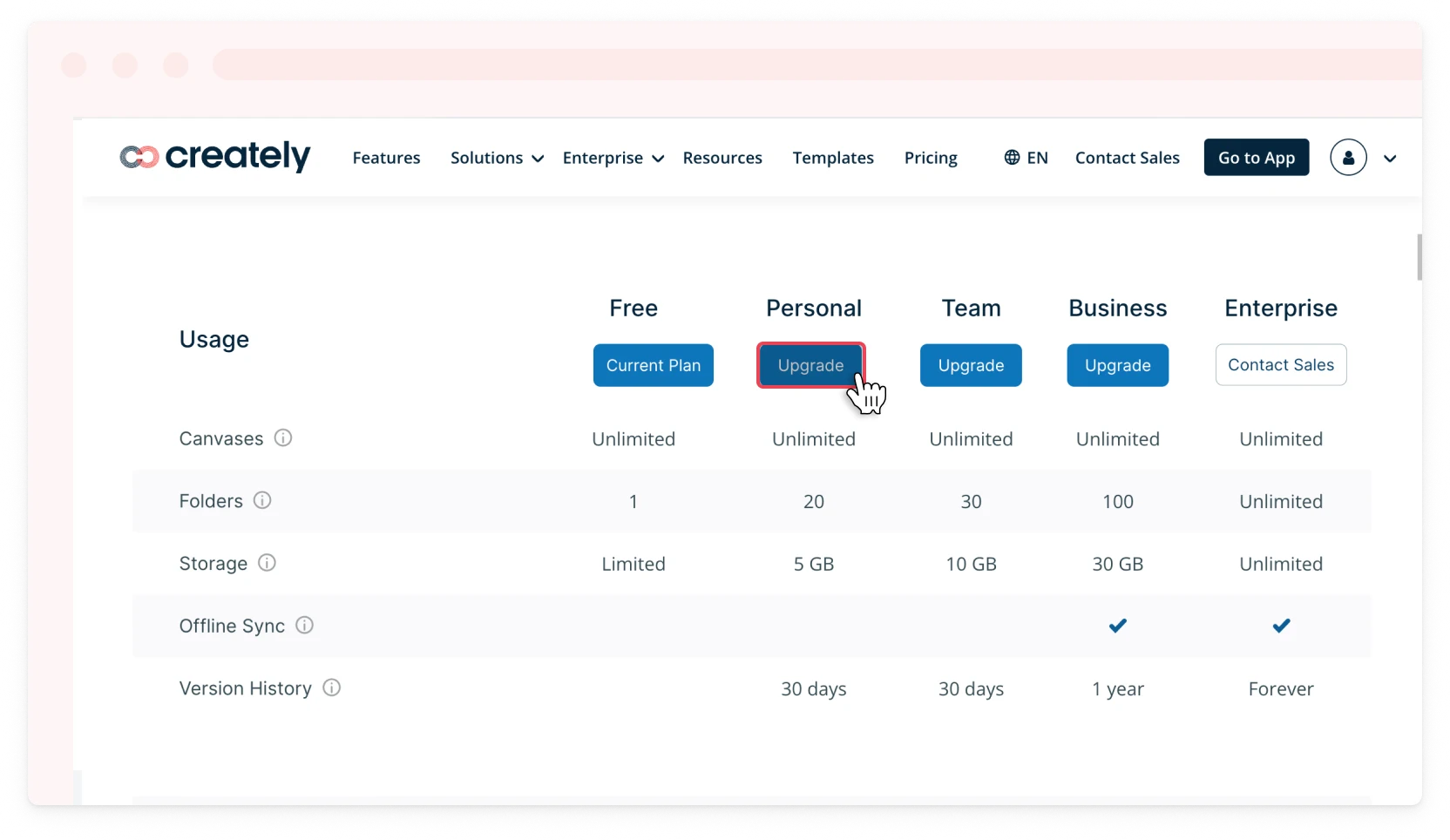
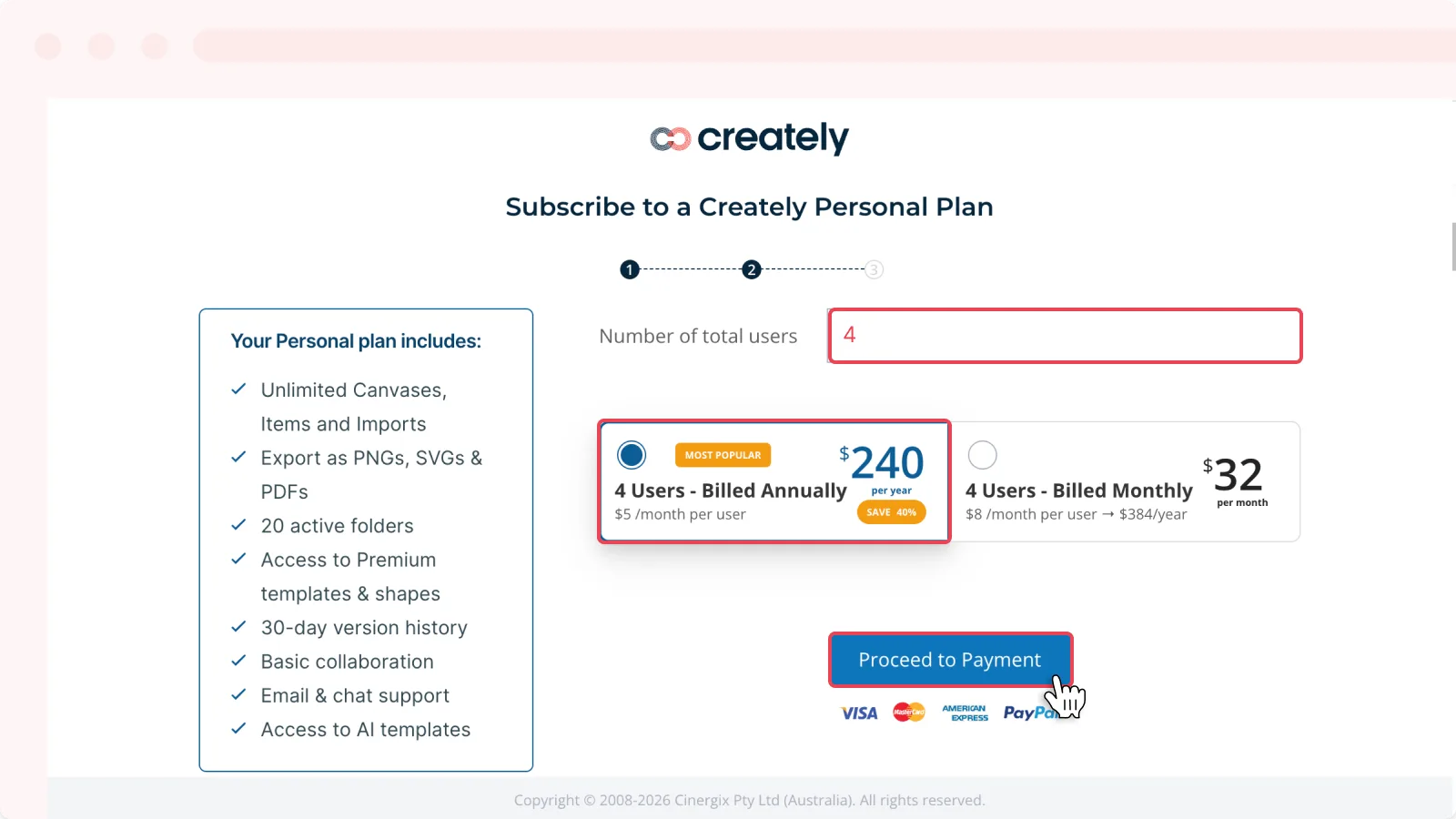
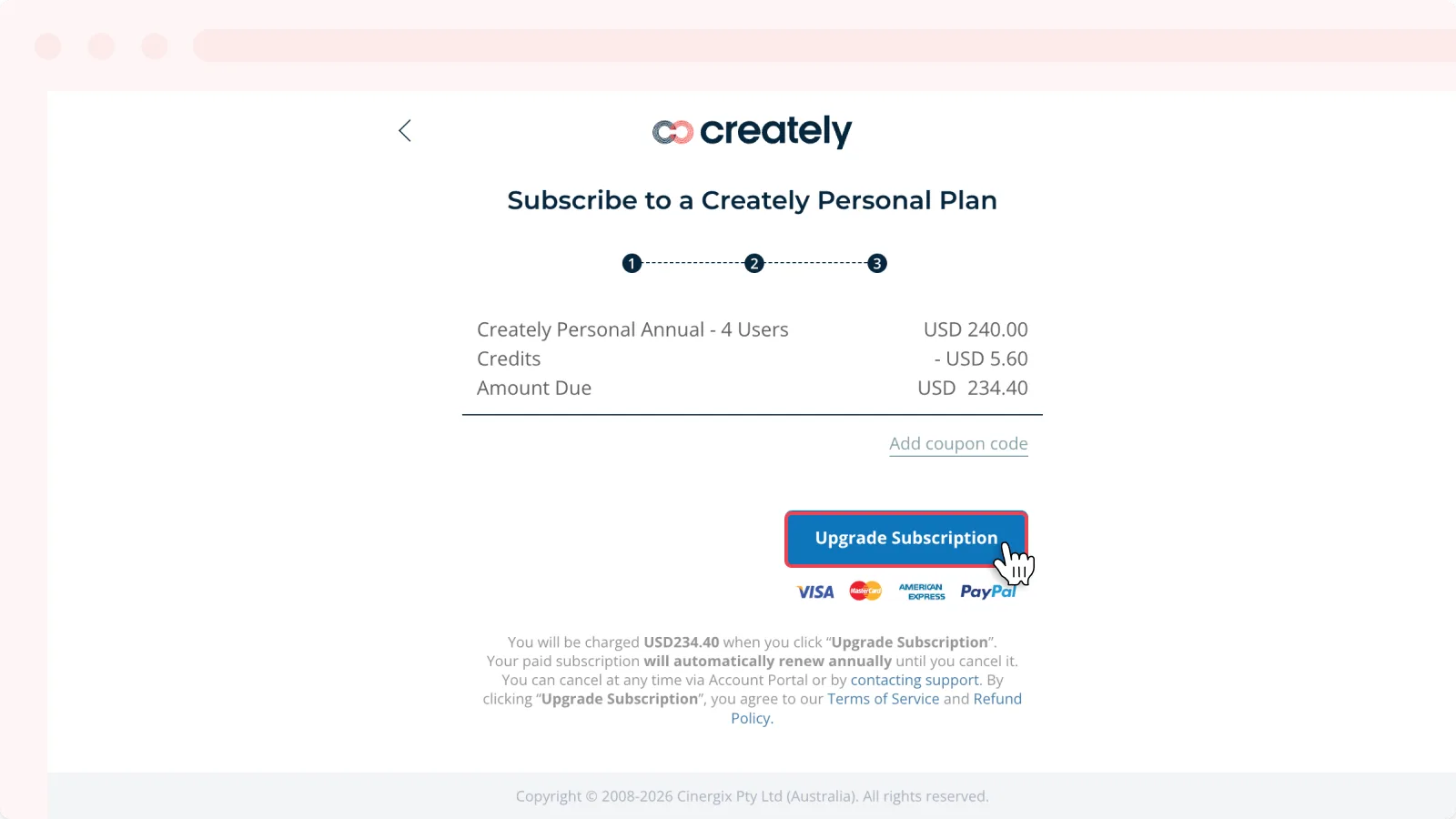
Note: You can also upgrade your subscription from visiting Plans & Pricing. If you’re a Business or Enterprise user, you will be required to contact the Creately Sales Team to upgrade/change your plan.
Adding More Users to the Subscription Plan
You can add more users to your plan if you are in a Personal or Team plan.
- Toggle the sidebar on the left-hand side of the canvas and select More → Account or in the dashboard view, click Settings → Account next to your username.
- Select the Billing Information tab.
- Click Change Plan under Plan Details.
- Click the Current Plan button under your current subscription.
- Enter the number of users you want to add.
- Select your preferred billing plan (Annually or Monthly).
- Click Proceed to Payment.
- Add coupon code (if available) and click Upgrade Subscription.
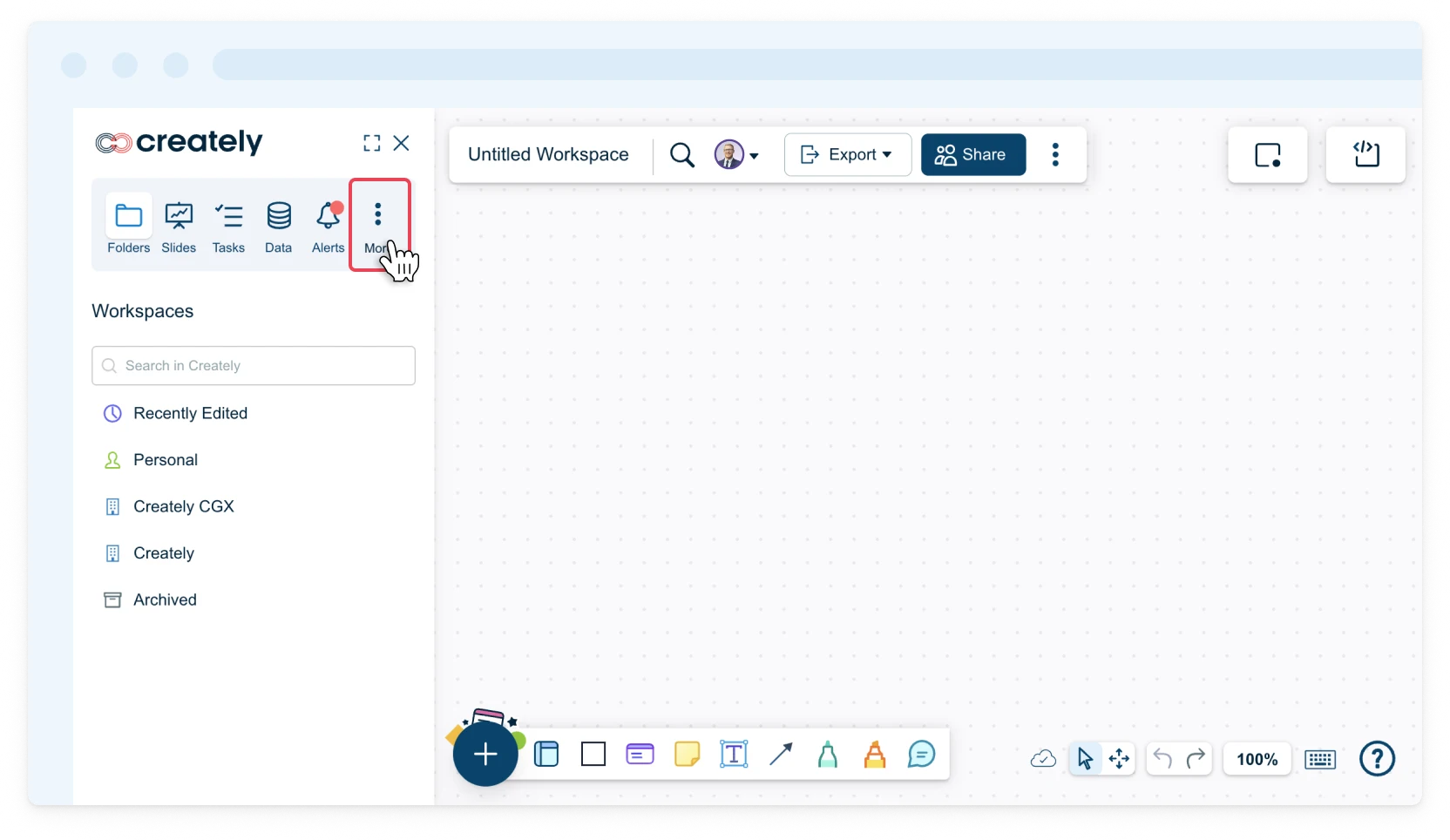
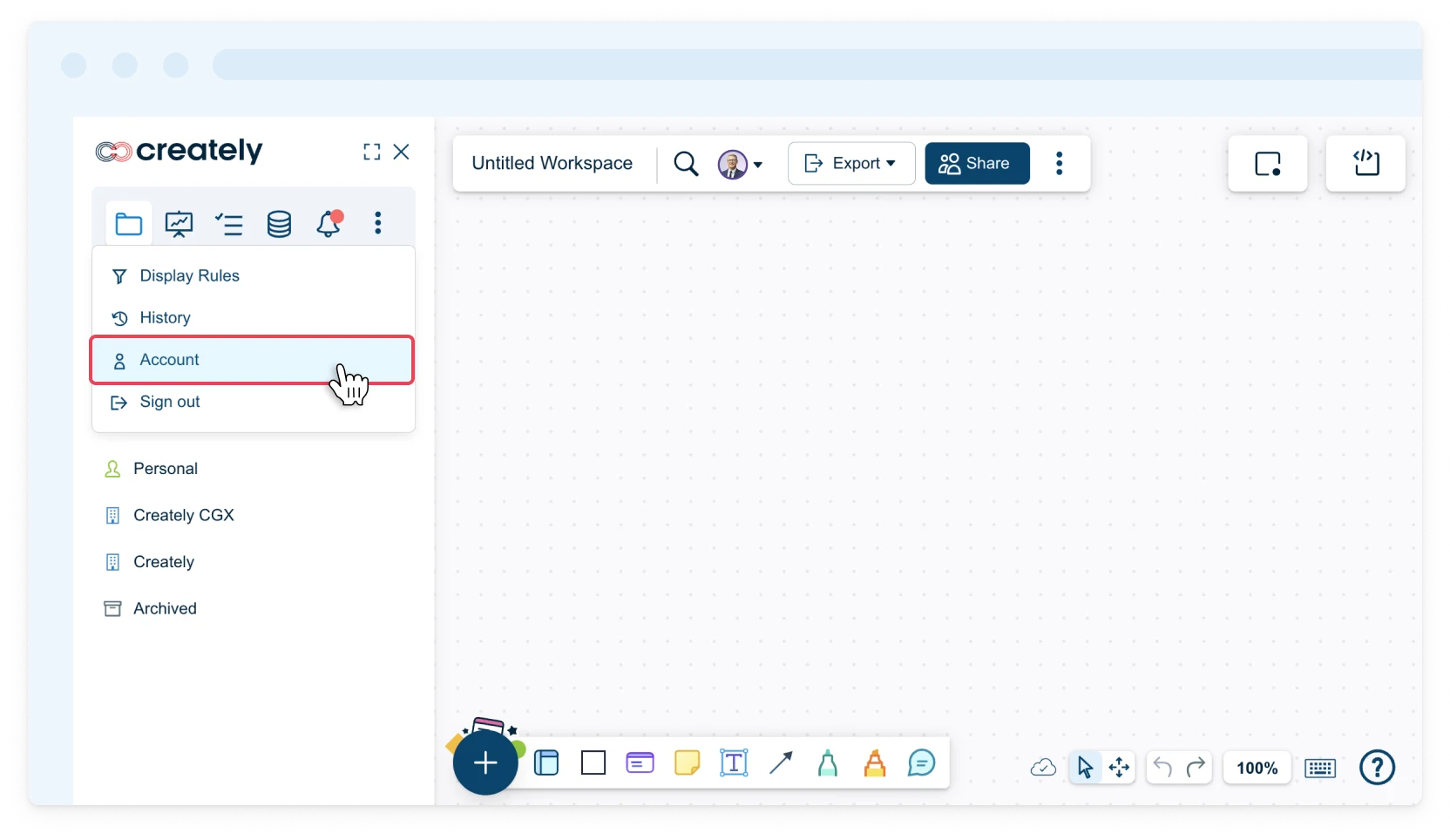
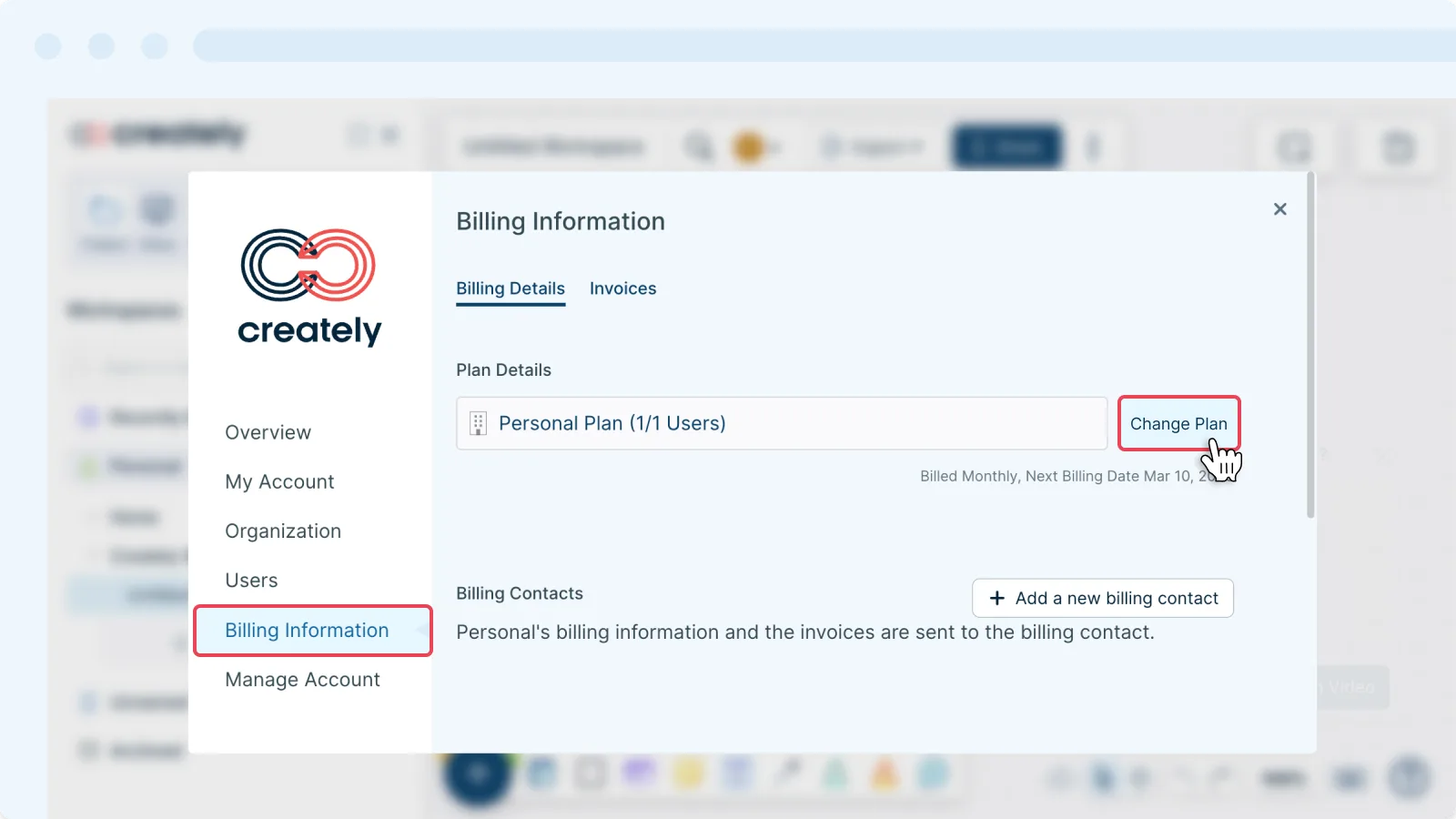
Note: You can also add more users while upgrading your subscription plan. Both Business and Enterprise plans can have an unlimited number of users.
Pausing and Reactivating Your Subscription
Instead of deleting your account, you can now pause it for up to 3 months and you will not be charged for this period. For instance, if you’re a freelancer and working on many projects, you can now pause the account until you manage to bag a new project, and resume then.
To pause an account, you need to be on an active premium plan. Once you pause an active account, it will be paused at the end of your current subscription period. For example, if your current subscription is to expire in another 15 days and you paused now, the subscription will be paused at the end of 15 days. You will not be billed on the next renewal.
Here’s how you can pause a subscription:
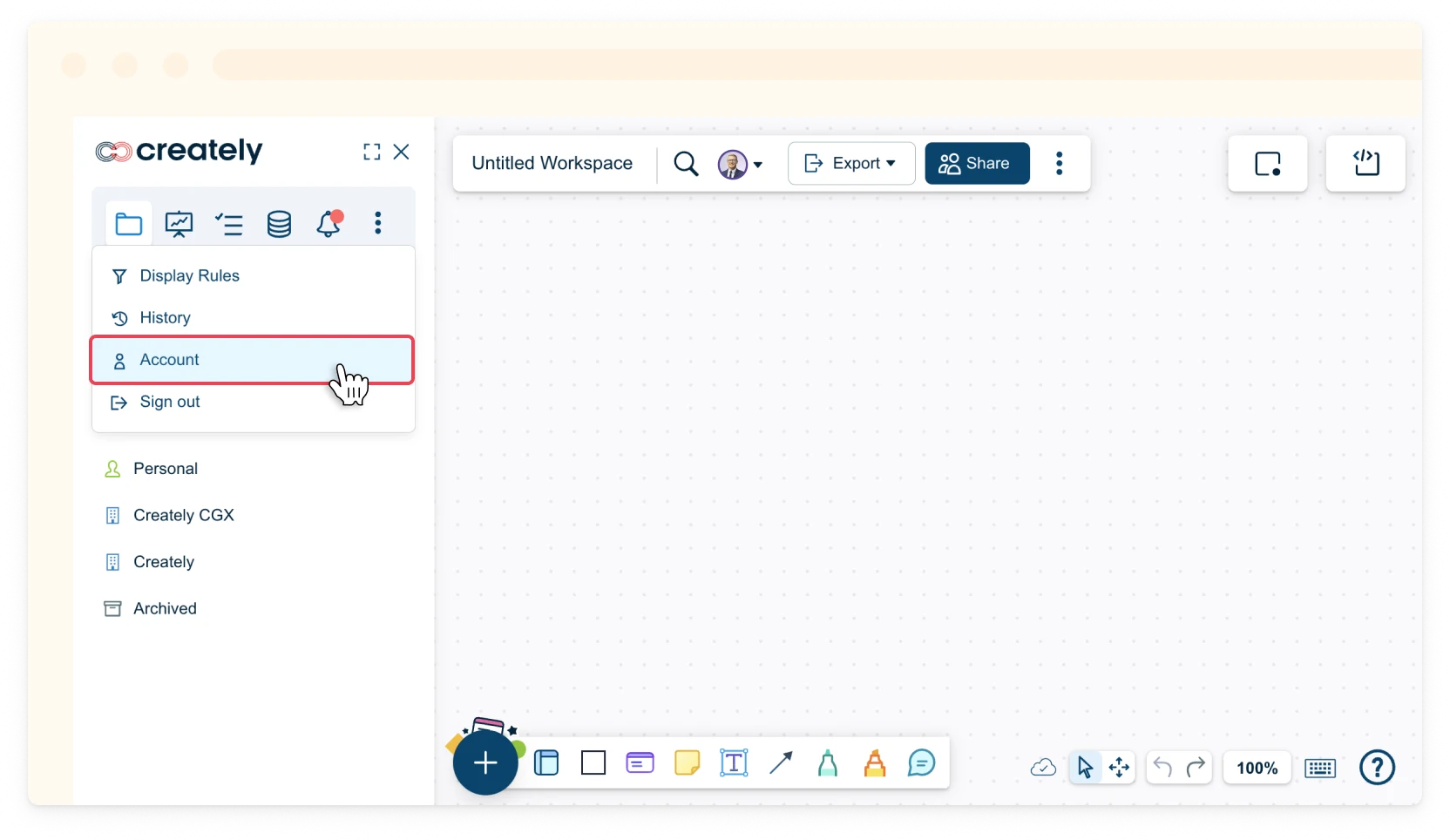
- Toggle the sidebar on the left-hand side of the canvas and select More → Account or in the dashboard view, click Settings → Account next to your username.
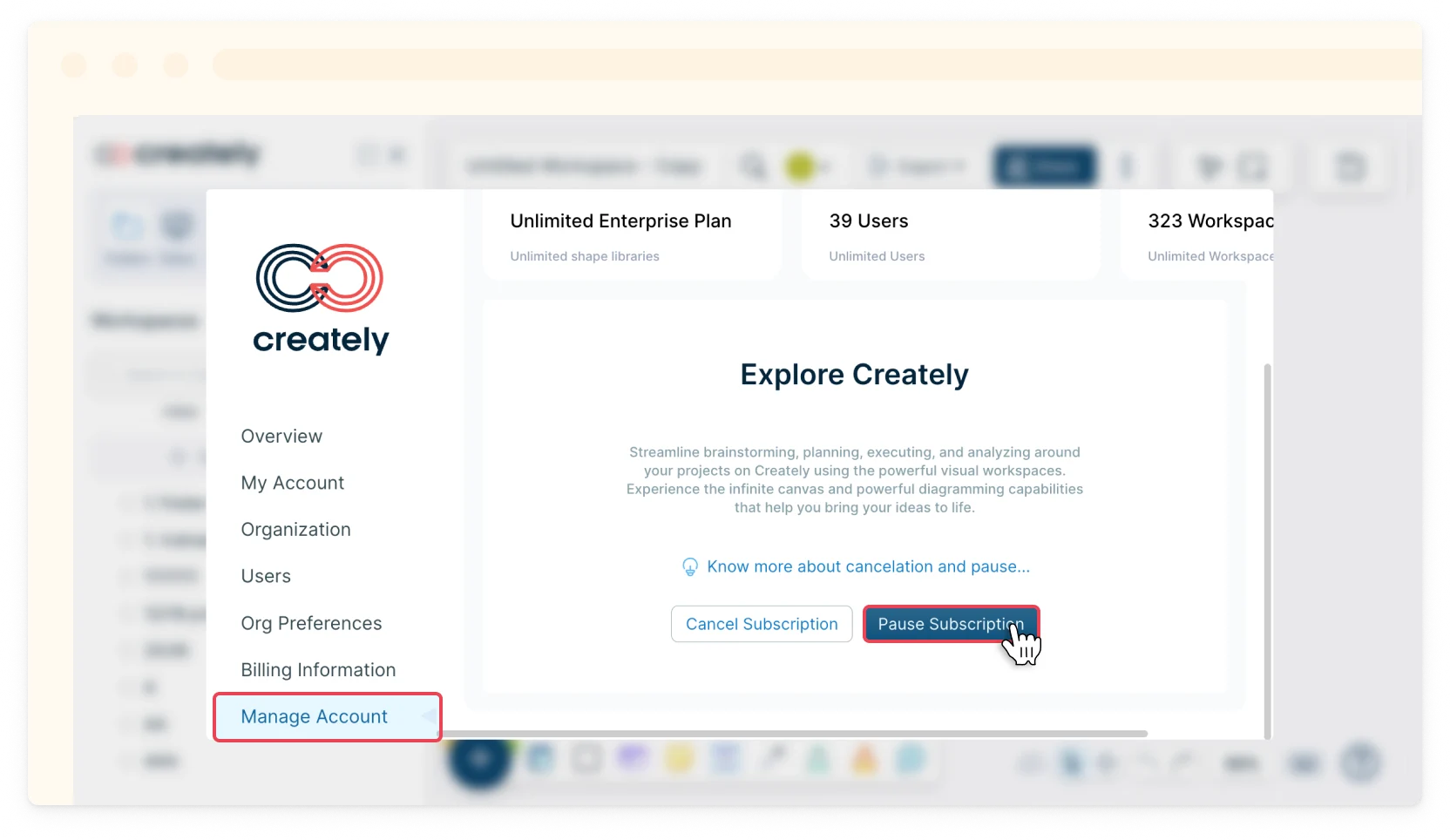
- Select the Manage Account tab.
- Click the Pause Subscription button.
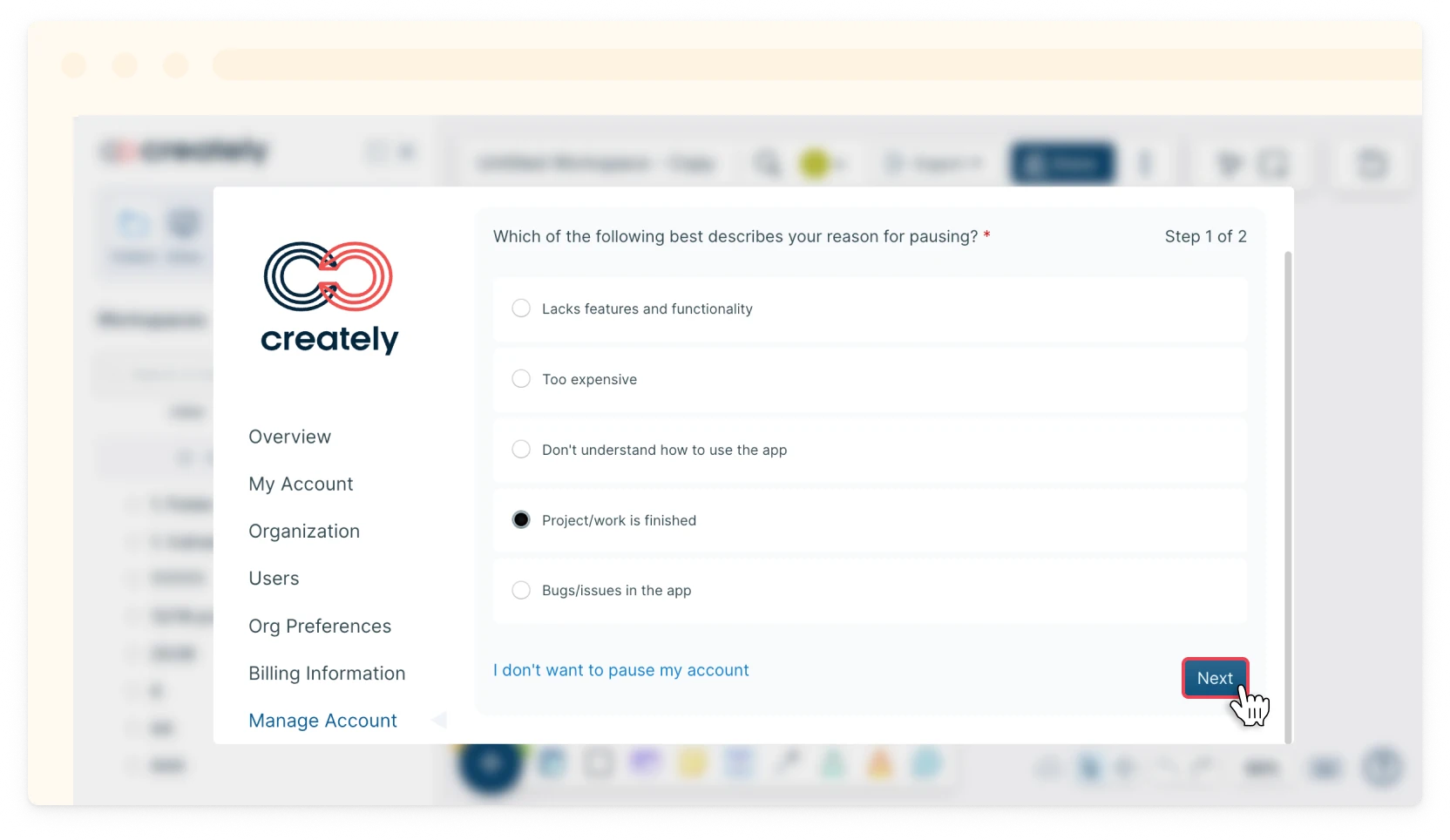
- Select the reason for pausing your subscription and click Next.
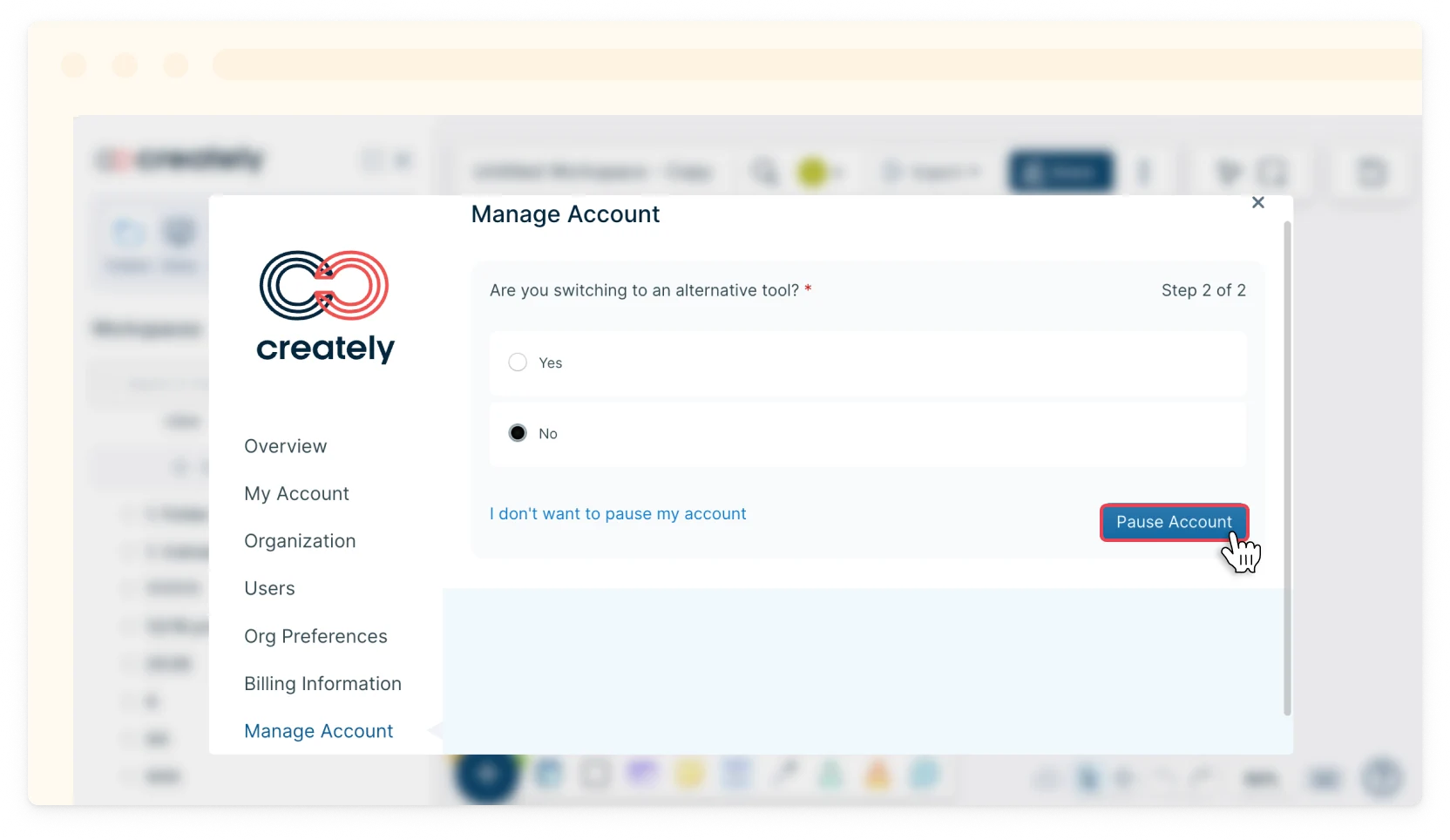
- Tell us if you’re switching to an alternative tool.
- Click Pause Account.
Your subscription will now be scheduled to pause at the end of the current billing period. We will notify you again before the auto-renewal of your subscription at the end of the 3 month pause period.
To reactive your subscription:
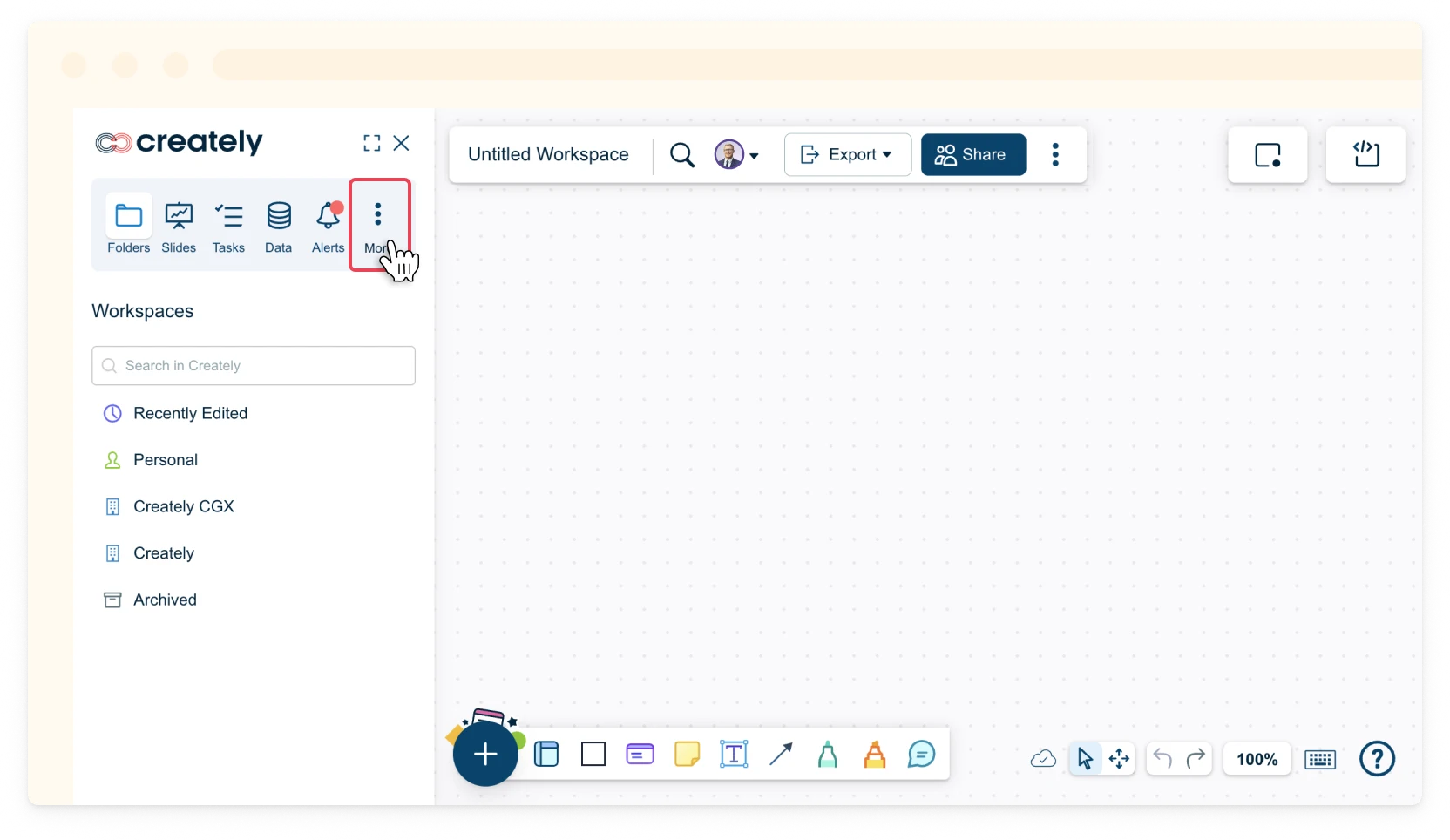
- Toggle the sidebar on the left-hand side of the canvas and select More → Account or in the dashboard view, click Settings → Account next to your username.
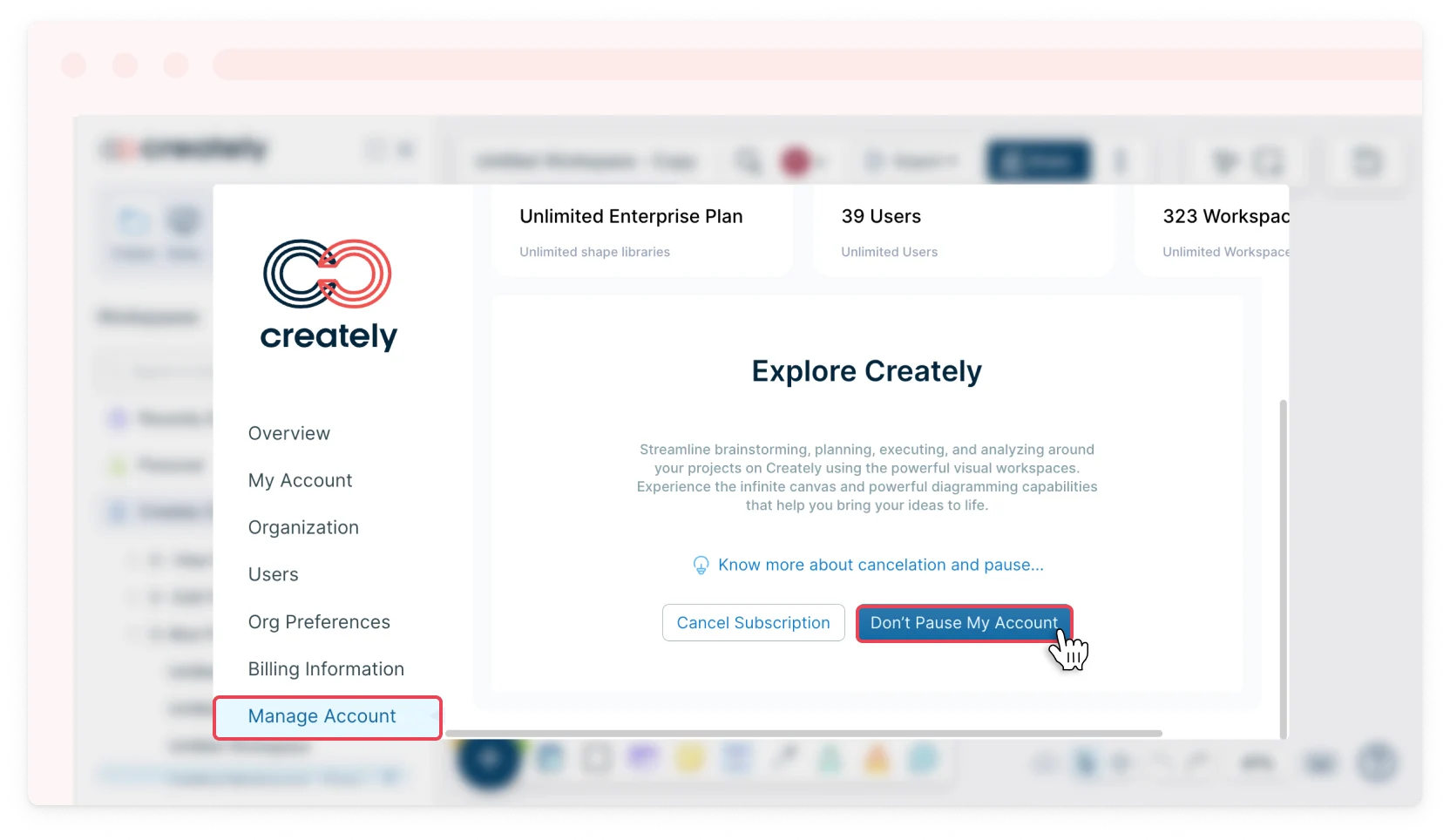
- Select the Manage Account tab.
- Select the Don’t Pause My Account button.
Note: Clearing cache and logging in afresh is recommended once you’ve completed the reactivation process.
Canceling a Subscription
Subscriptions on Creately renew automatically unless you pause or cancel your subscription. You could refer to the steps below to cancel your subscription. However, if you only wish to take a break from the app, you could pause the subscription and resume when you need it again.
By choosing to cancel your subscription, your account will be downgraded to a free user account and your existing workspaces will be locked.
To cancel a subscription through your account portal:
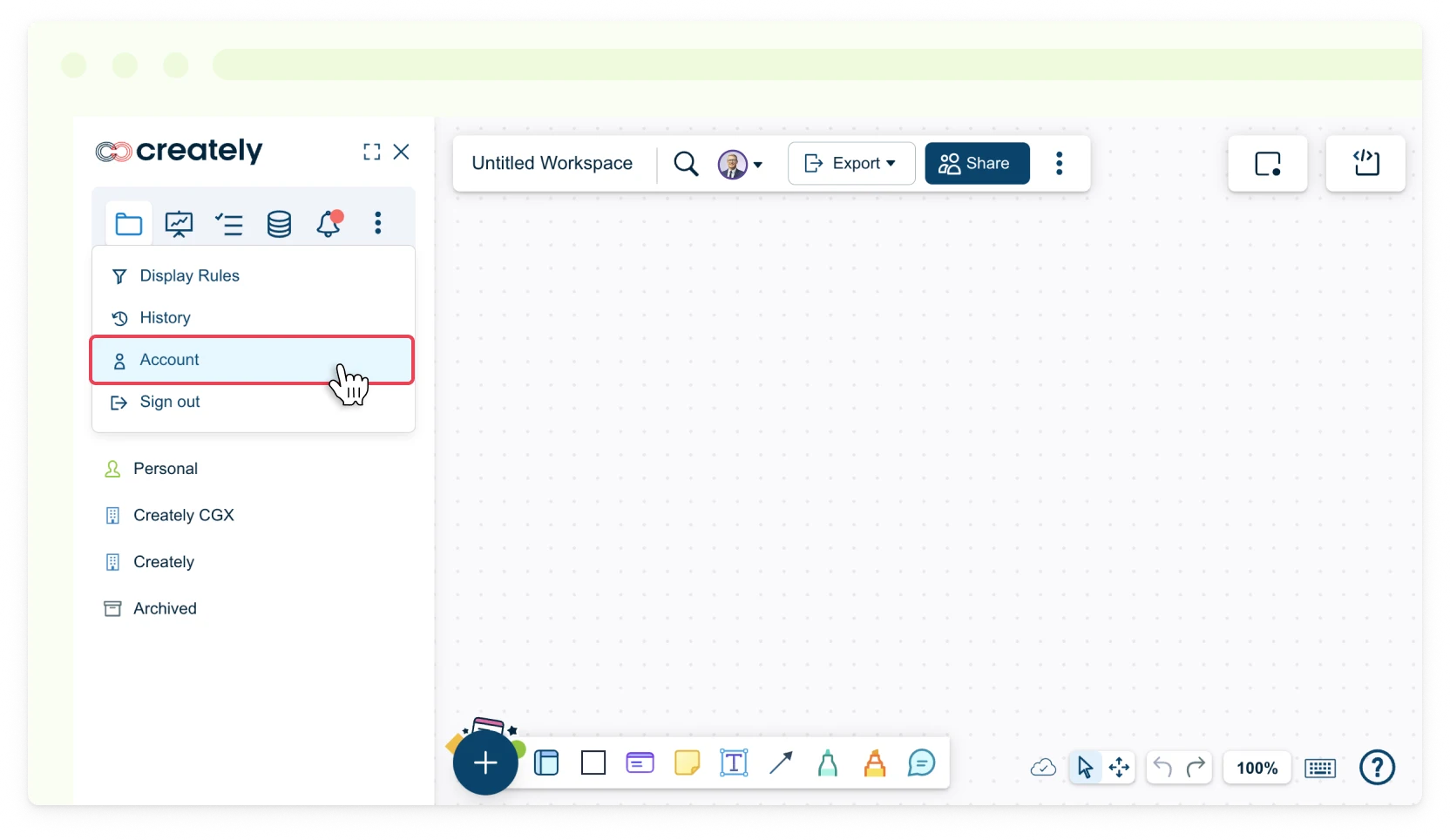
- Toggle the sidebar on the left-hand side of the canvas and select More → Account or in the dashboard view, click Settings → Account next to your username.
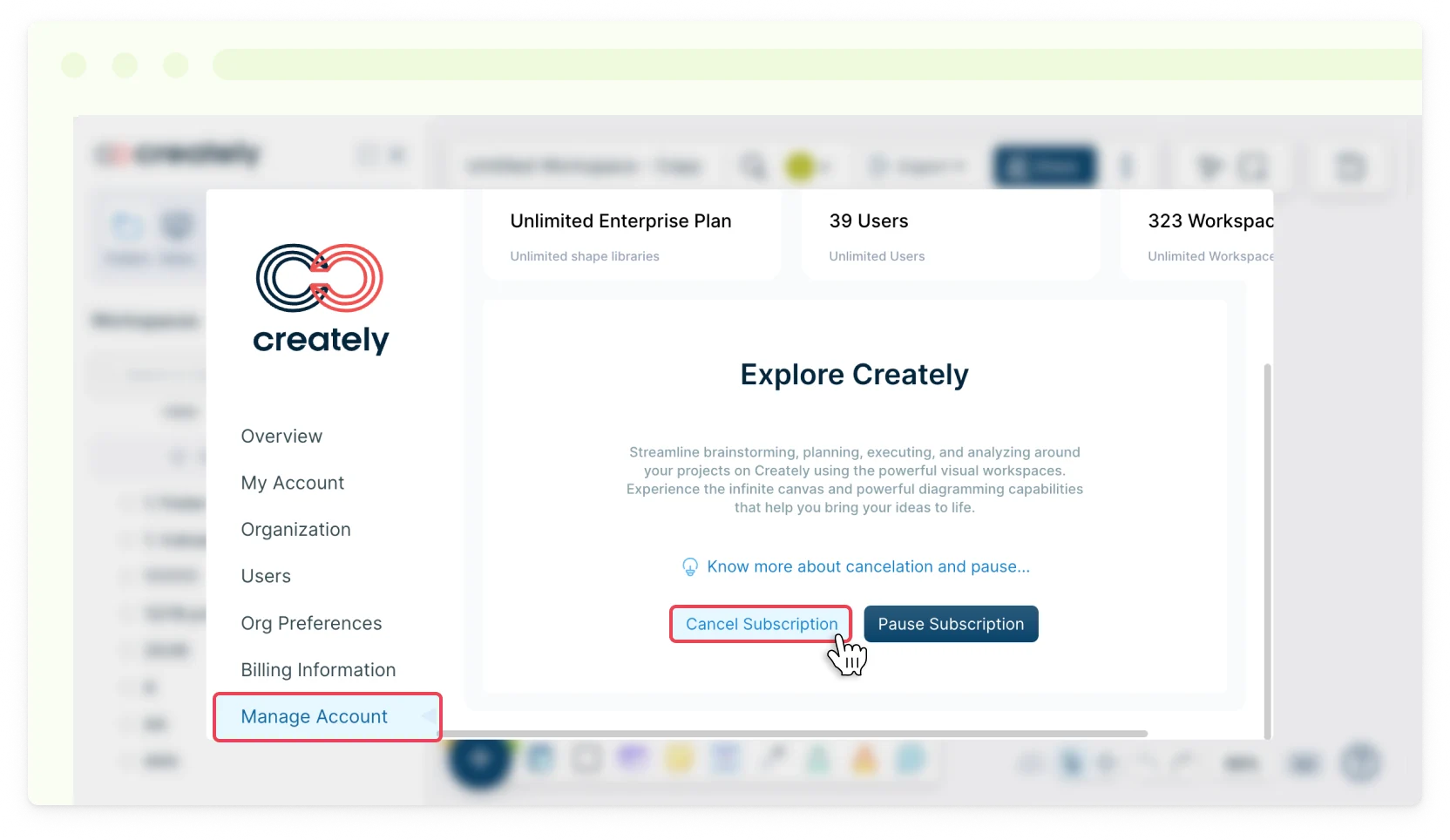
- Select the Manage Account tab.
- Click Cancel Subscription.
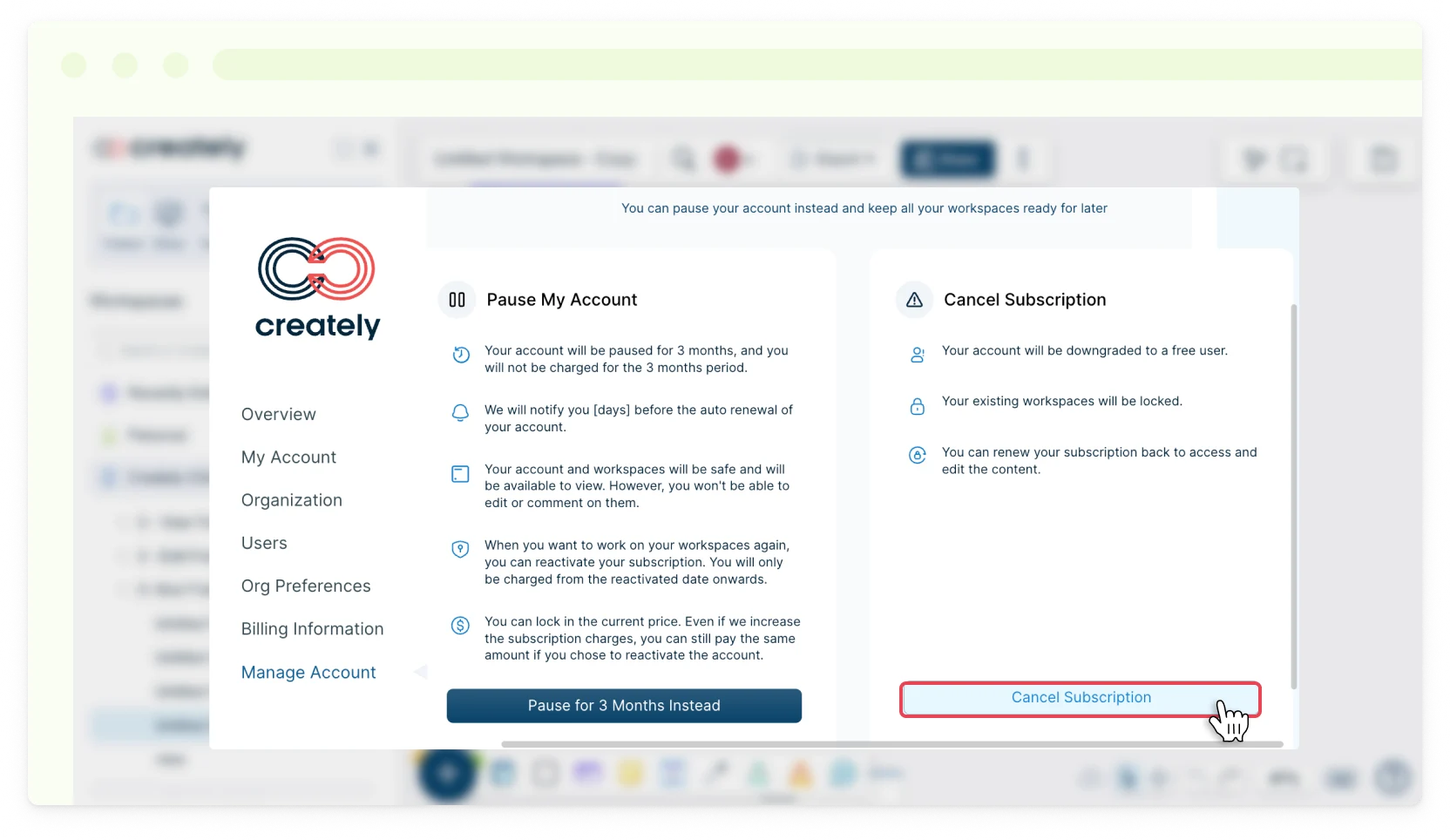
- You will be prompted to choose between Pause My Account and Cancel Subscription.
- Read the details carefully, and if you’re still sure you want to cancel, click Cancel Subscription.
You can still renew your subscription to regain access to your workspaces and your content.
Stopping Pay-Pal Recurring Charges
If your PayPal account was charged even after you cancelled your Creately subscription via the app:
- Open a ticket with Creately Support right away.
- Share the PayPal transaction receipts you received from PayPal for these purchases that occurred after you cancelled your subscription along with your PayPal ID.
You can also cancel the agreement with Creately from your PayPal account.
For more information on our refund policy, read our Terms of Service.