Building a genogram live is hard when you’re listening, asking follow‑up questions, and documenting at the same time. In this guide you’ll learn the 1–5 shortcut system for adding relatives, relationship shortcuts, and ways to move around the canvas fast so you can keep the conversation flowing.
You’ll also learn how to build a three‑generation genogram in under a minute and how to use shortcut tips effectively during live therapy sessions.
Why Speed Matters in Clinical Settings
In therapy, counseling, and family assessment sessions, time is limited. You’re listening carefully, asking questions, and documenting family relationships at the same time. If creating the diagram slows you down, the session flow breaks. That’s why genogram keyboard shortcuts matter. Instead of opening menus or searching for symbols, you can add relatives and create relationships with simple keystrokes.
Benefits of Using Genogram Keyboard Commands
- Capture family structures as the client speaks.
- Reduce post‑session documentation work.
- Keep your attention on the client, not the software.
- Build multi‑generation diagrams in minutes.
The 1–5 Genogram Shortcut System
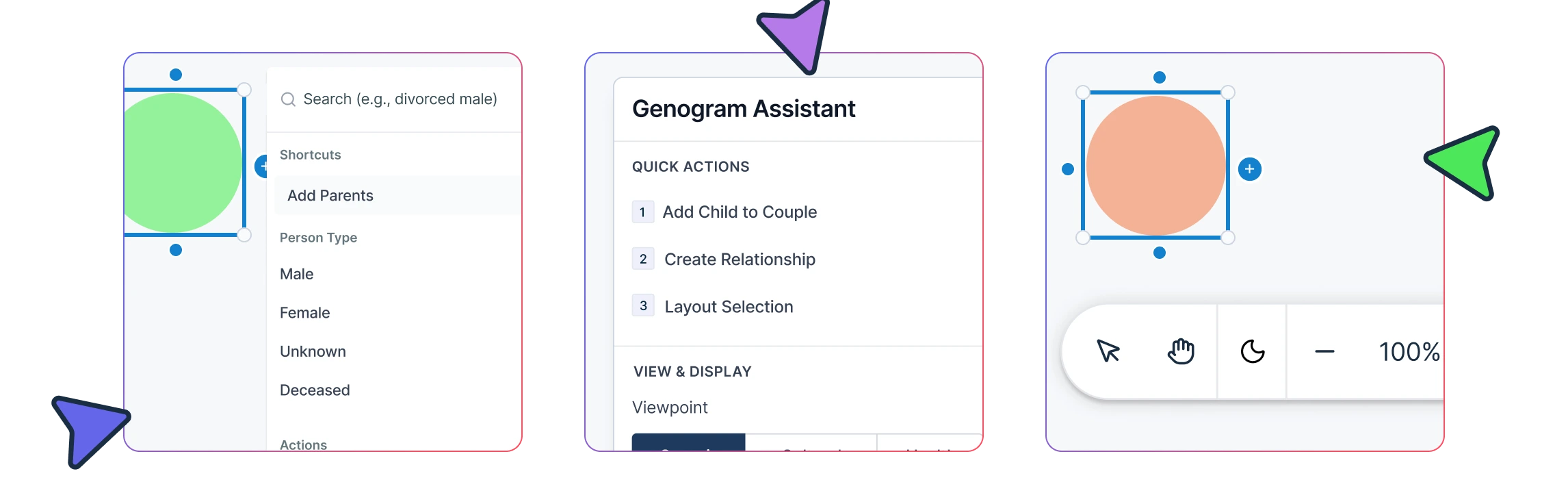
Instead of drawing shapes and relationship lines manually, a single keystroke adds both the person and the relationship automatically. Available keyboard shortcuts appear in the Genogram Assistant panel on the left side of the canvas and update contextually based on the selected genogram symbol.
To use genogram keyboard commands, select a Person shape on the canvas and press keys 1–5.
| Shortcut | Action | What It Creates |
|---|---|---|
| 1 | Add partner | Partner relationship connection |
| 2 | Add child | Child connected to the selected person |
| 3 | Add parent | Parent linked above the selected person |
| 4 | Add parents (pair) | Two connected parents automatically added |
| 5 | Add sibling | Sibling linked through shared parents |
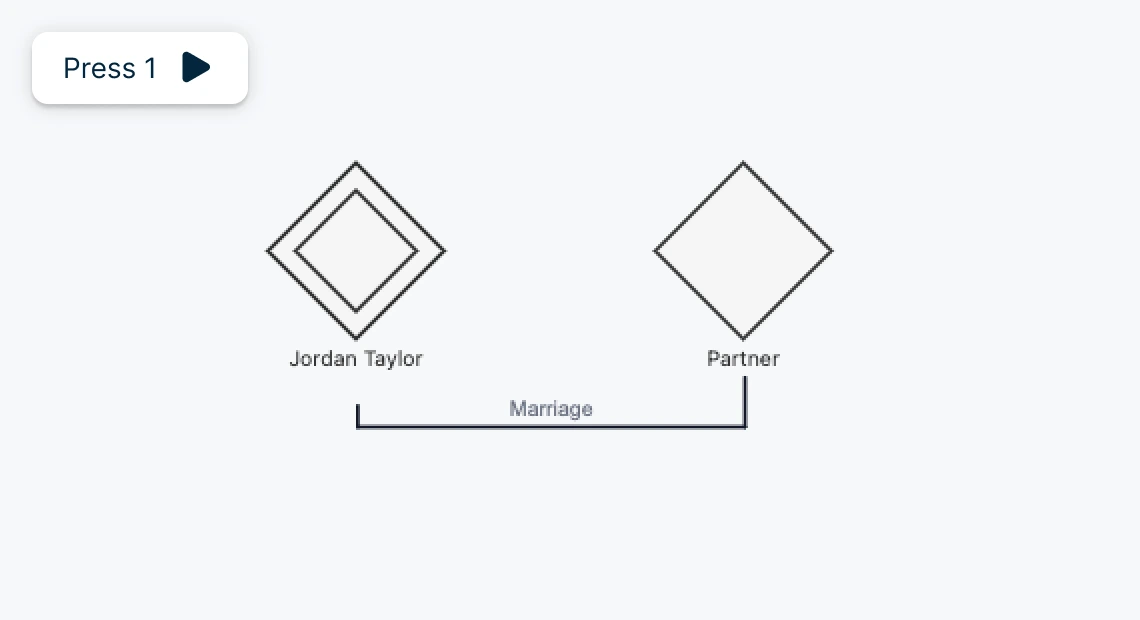
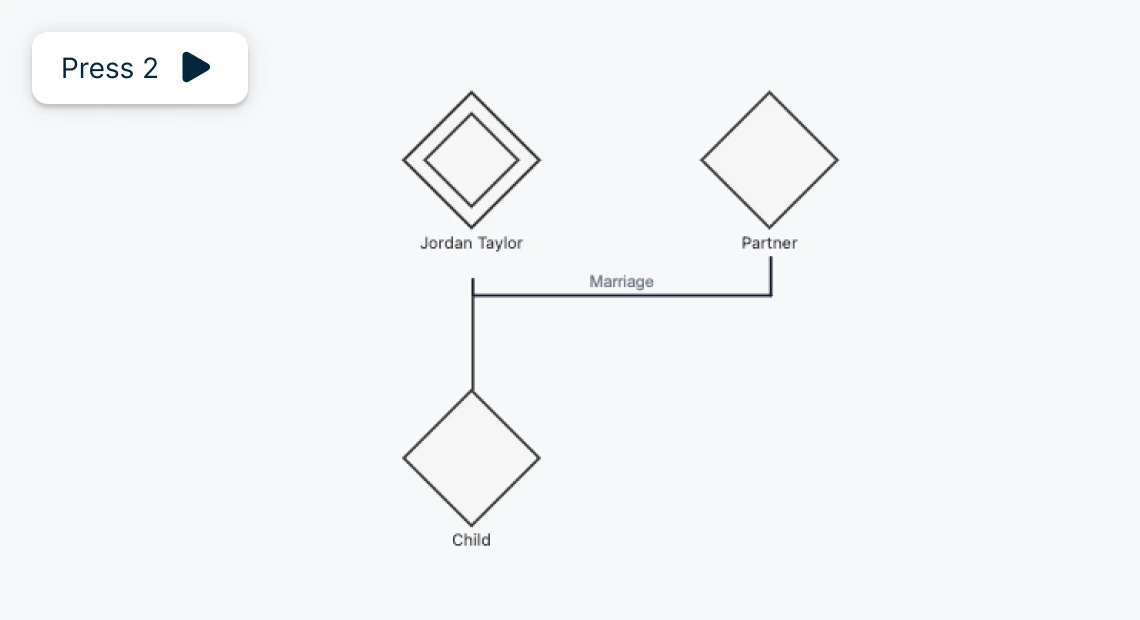
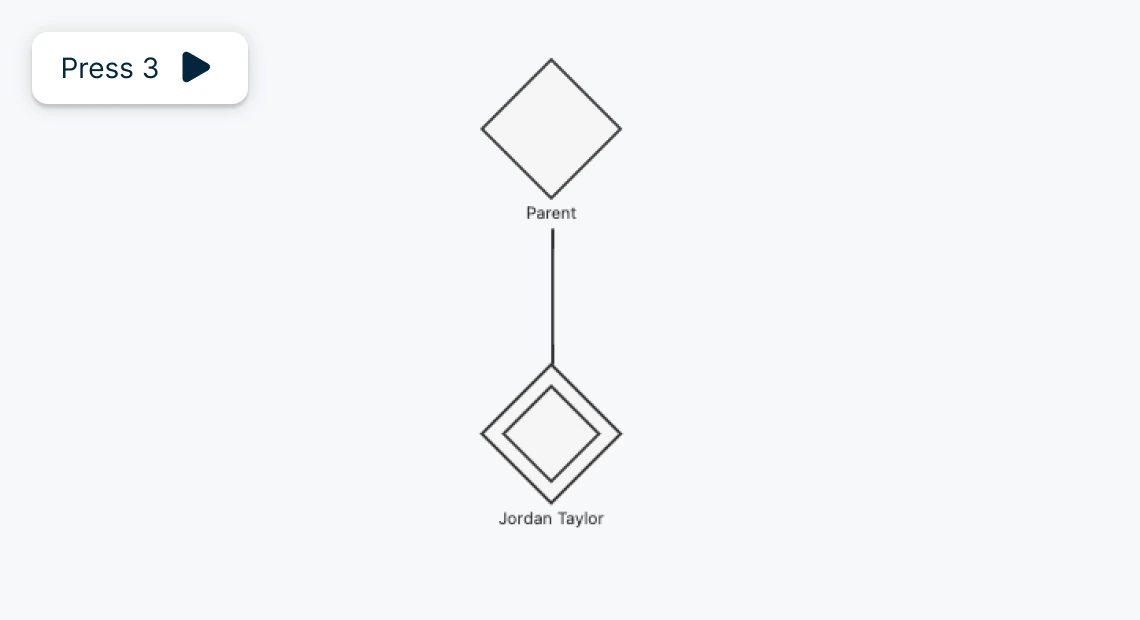
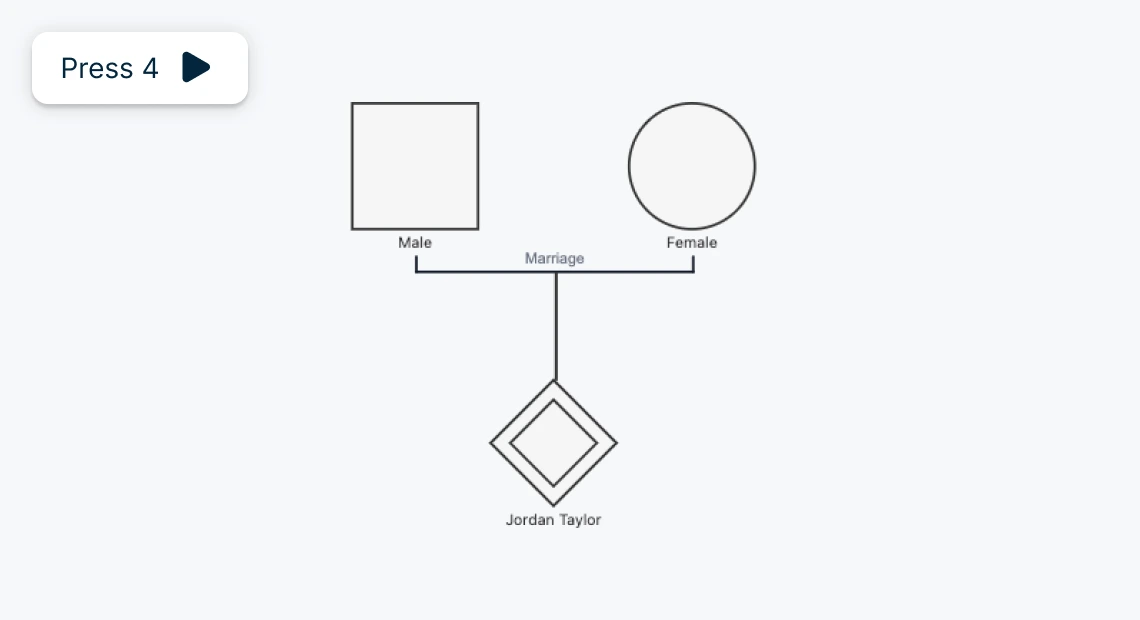
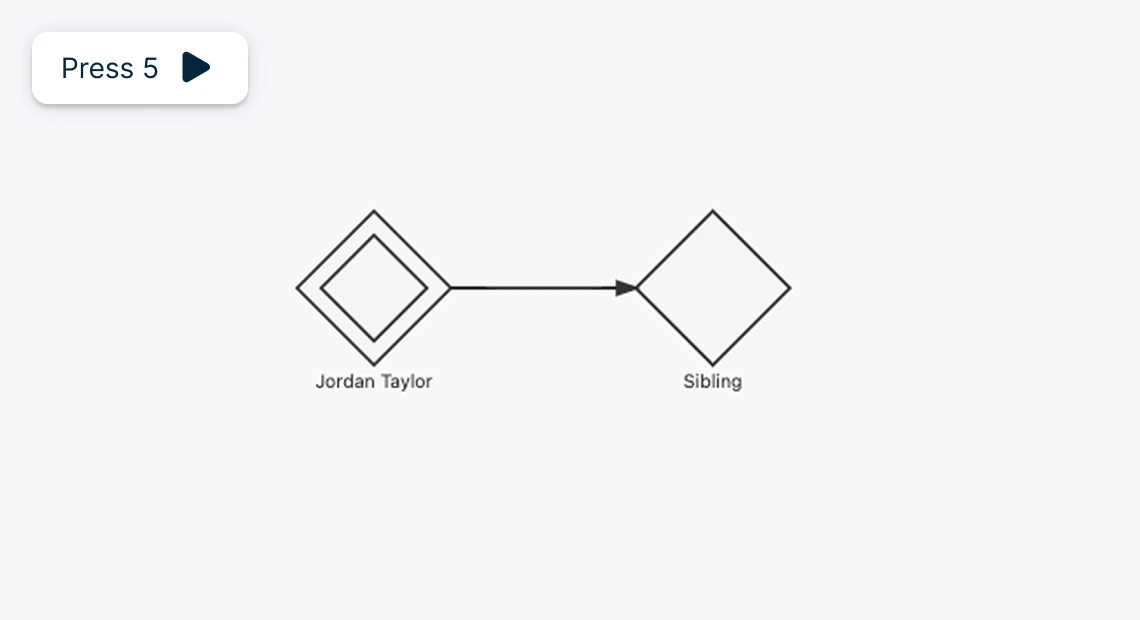
This system dramatically speeds up fast genogram creation because:
- You don’t need to draw relationship lines manually.
- Generational positioning happens automatically.
- Parent–child structures stay organized.
In clinical practice, this means you can map a family structure while the client is describing it, instead of reconstructing it later from your notes. Use Creately’s therapy genogram software to add relatives with quick shortcuts, map emotional dynamics, and generate structured clinical diagrams in minutes.
Shortcuts When No Person Is Selected
When no Person shape is selected, you can use keys 1–3 to start quickly.
| Shortcut | Action | What It Creates |
|---|---|---|
| 1 | Add person | Adds a person shape to the canvas |
| 2 | Add from template | Select from three basic family genogram templates using shortcuts 1–3 again |
| 3 | Generate from text | Paste intake notes or describe the family to auto‑generate a genogram with AI |
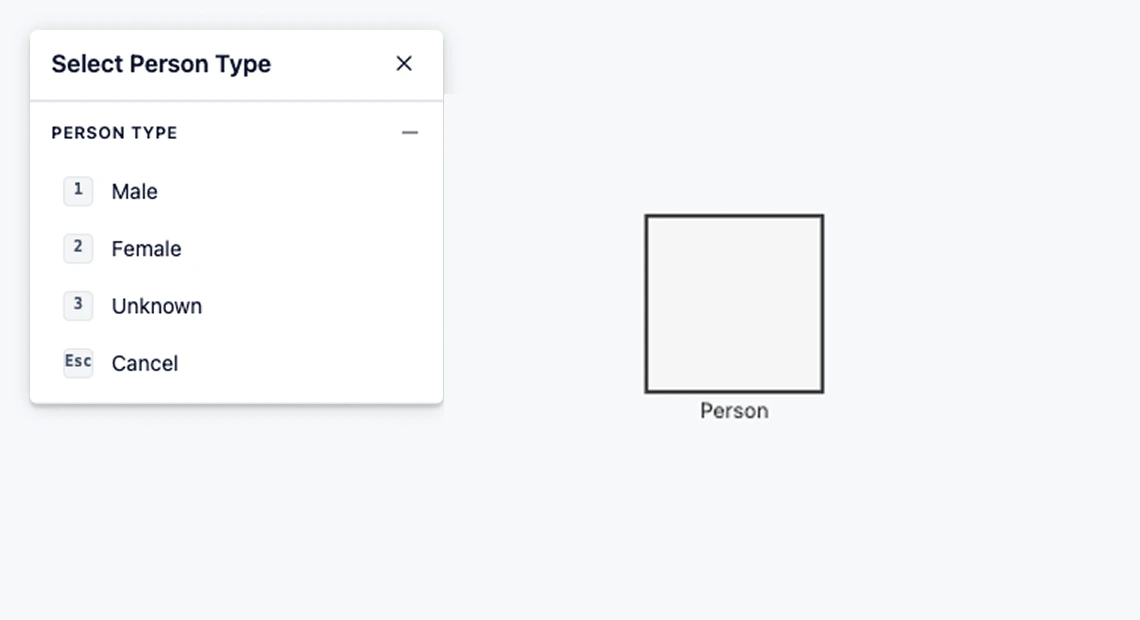
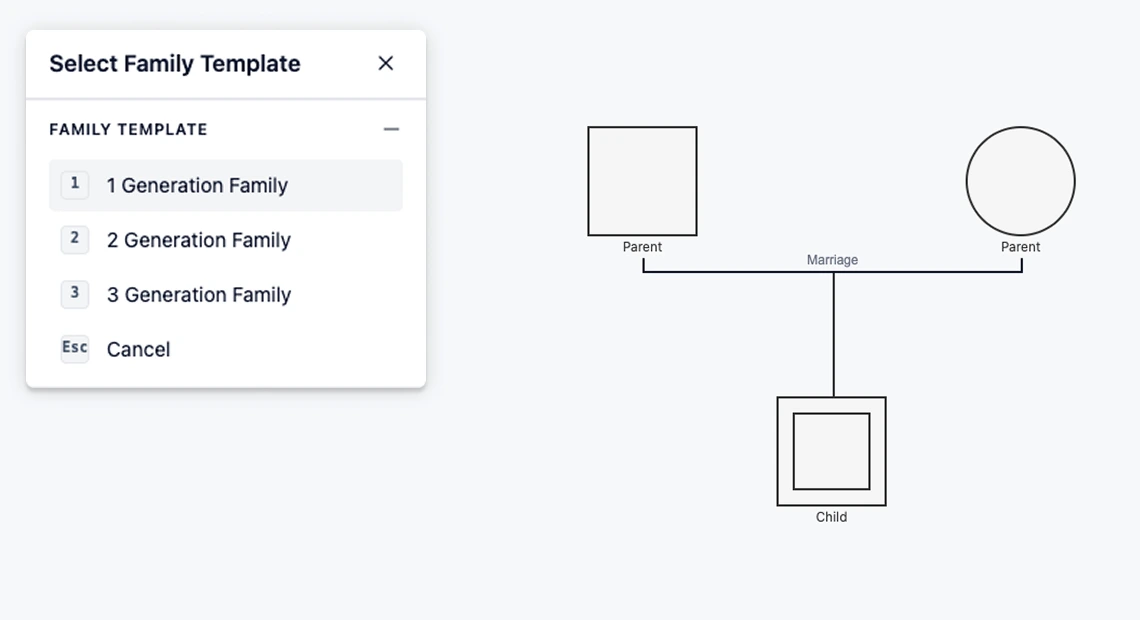
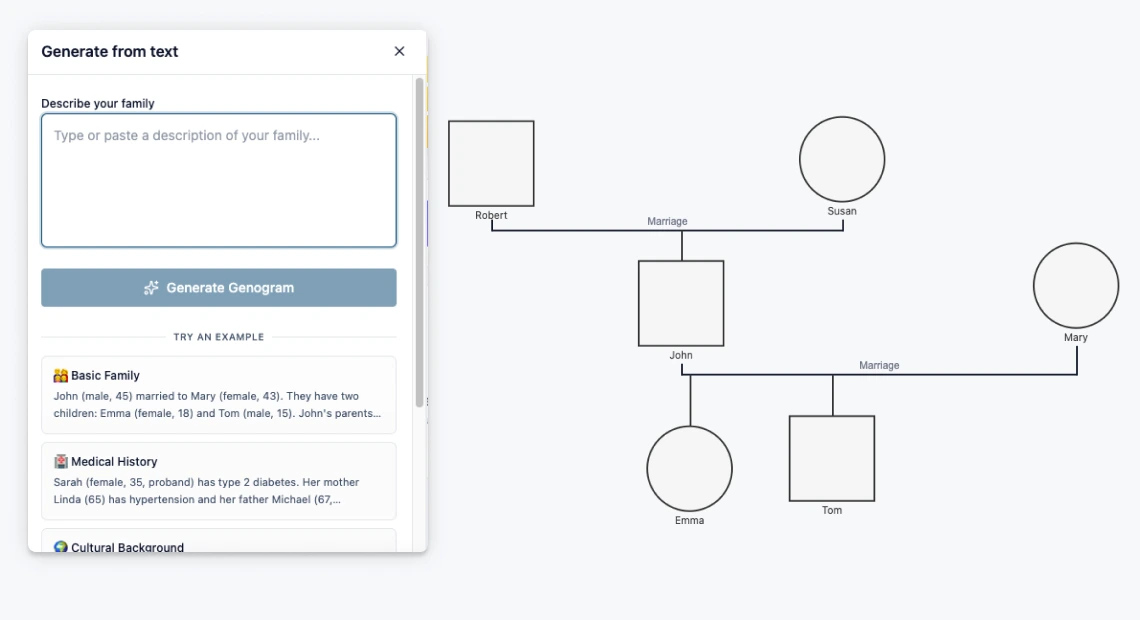
Read how AI creates genograms from text to learn how to use your session notes and family history descriptions to instantly generate genograms.
Two‑Person Selection Shortcuts
These shortcuts help you connect people you’ve already added. They’re especially useful when you need to:
- Add a marriage or partnership.
- Link parents after adding children.
- Connect previously unlinked individuals.
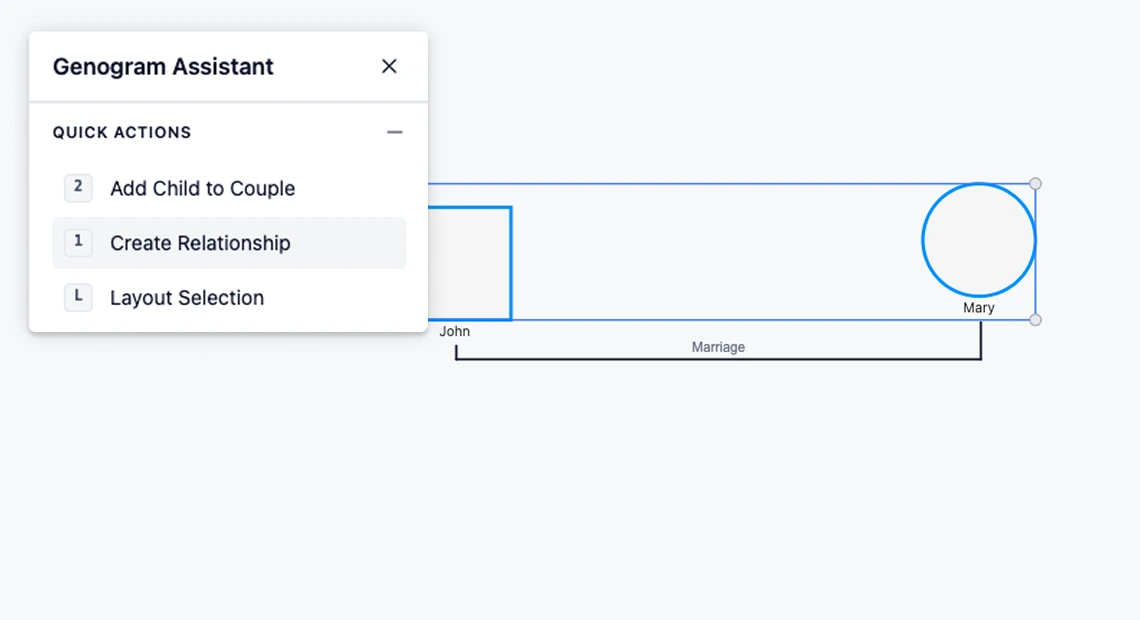
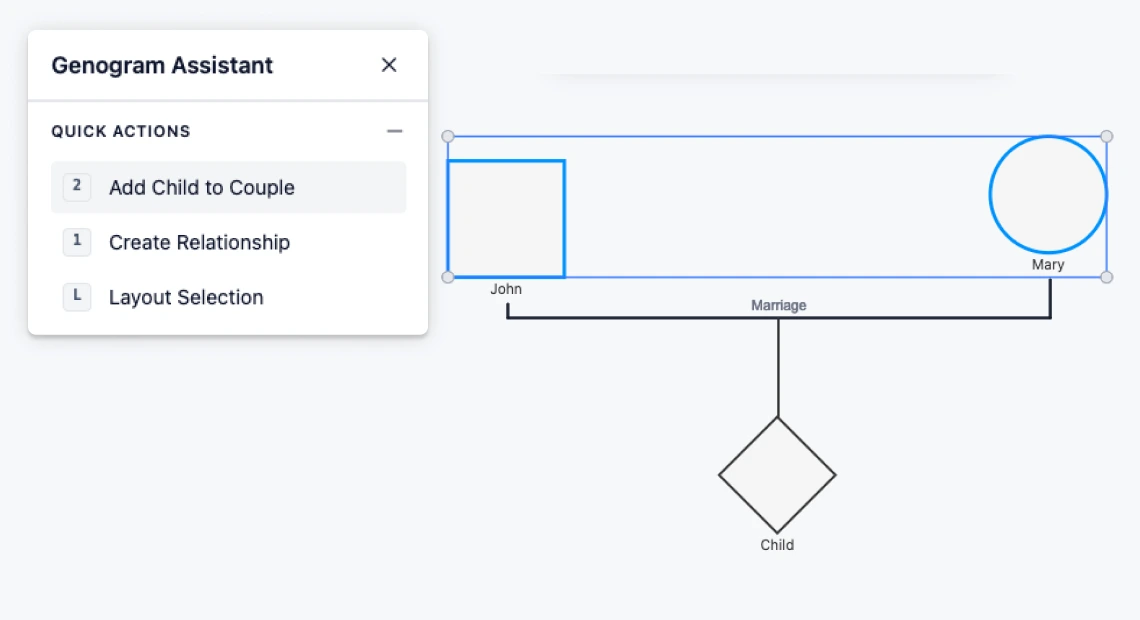
To use these shortcuts, select two people on the genogram.
| Shortcut | Action | What It Creates |
|---|---|---|
| 1 | Create relationship | Creates a relationship between two people |
| 2 | Add child | Adds a child to the selected couple |
Navigation Shortcuts (Pan, Zoom, Undo/Redo)
When a genogram grows beyond one screen, navigation shortcuts help you move through the diagram efficiently. These shortcuts are especially useful during live therapy sessions where quick corrections are often needed.
| Shortcut | Action | Why It Helps |
|---|---|---|
| Space + Drag | Pan canvas | Move around large multi‑generation genograms easily |
| Ctrl + Scroll | Zoom in/out | Switch quickly between overview and detailed editing |
| Ctrl + (+) | Zoom in | Focus on specific individuals or relationships |
| Ctrl + (‑) | Zoom out | View the entire family system structure |
| Ctrl + Z | Undo | Reverse accidental edits instantly |
| Ctrl + Shift + Z | Redo | Restore changes after undo |
How to Build a 3-Generation Family In 60 Seconds Using Genogram Drawing Shortcuts
Using genogram shortcut keys, you can quickly map a basic three‑generation family structure during a session.
Step 1: Add the client
Start by placing the client at the center of the genogram.
Step 2: Add parents
Press 4 to add both parents above the client automatically.
Step 3: Add siblings
Select the client and press 5 to add siblings connected to the same parents.
Step 4: Add partners
Select a person and press 1 to add their partner.
Step 5: Add children
Select a couple or individual and press 2 to add children below them.
In less than a minute, you can build a complete three‑generation genogram while the client is describing their family structure.
Read our how to make a genogram guide for a more in-depth tutorial on how to create clinical-grade genograms.
Tips for Using Shortcuts During Live Therapy Sessions
When building a genogram during therapy sessions, a few simple habits can help you stay focused on the conversation while capturing the family structure accurately.
Start with the core family structure: Begin by mapping the client, parents, partners, and siblings first. This creates the foundation of the genogram before adding deeper relationship details.
Build the diagram while the client speaks: Use genogram keyboard shortcuts to add relatives as the client describes them. This helps maintain the natural flow of the therapy conversation.
Focus on structure first, details later: During the session, prioritize adding family members and relationships. Emotional dynamics, health conditions, and annotations can be added after the session.
Use the genogram as a discussion tool: Show the diagram to the client during the session. Visualizing family patterns often helps clients recognize dynamics they may not have noticed before.
Keep navigation simple: Use zoom and pan shortcuts to move through large family diagrams quickly without interrupting the session flow.
Mastering Creately genogram keyboard shortcuts helps clinicians document family structures quickly without disrupting the therapeutic conversation. By using simple keystrokes to add relatives, create relationships, and navigate the diagram, you can build accurate multi-generation genograms during the session itself, saving time, improving documentation, and keeping your focus where it matters most: the client.
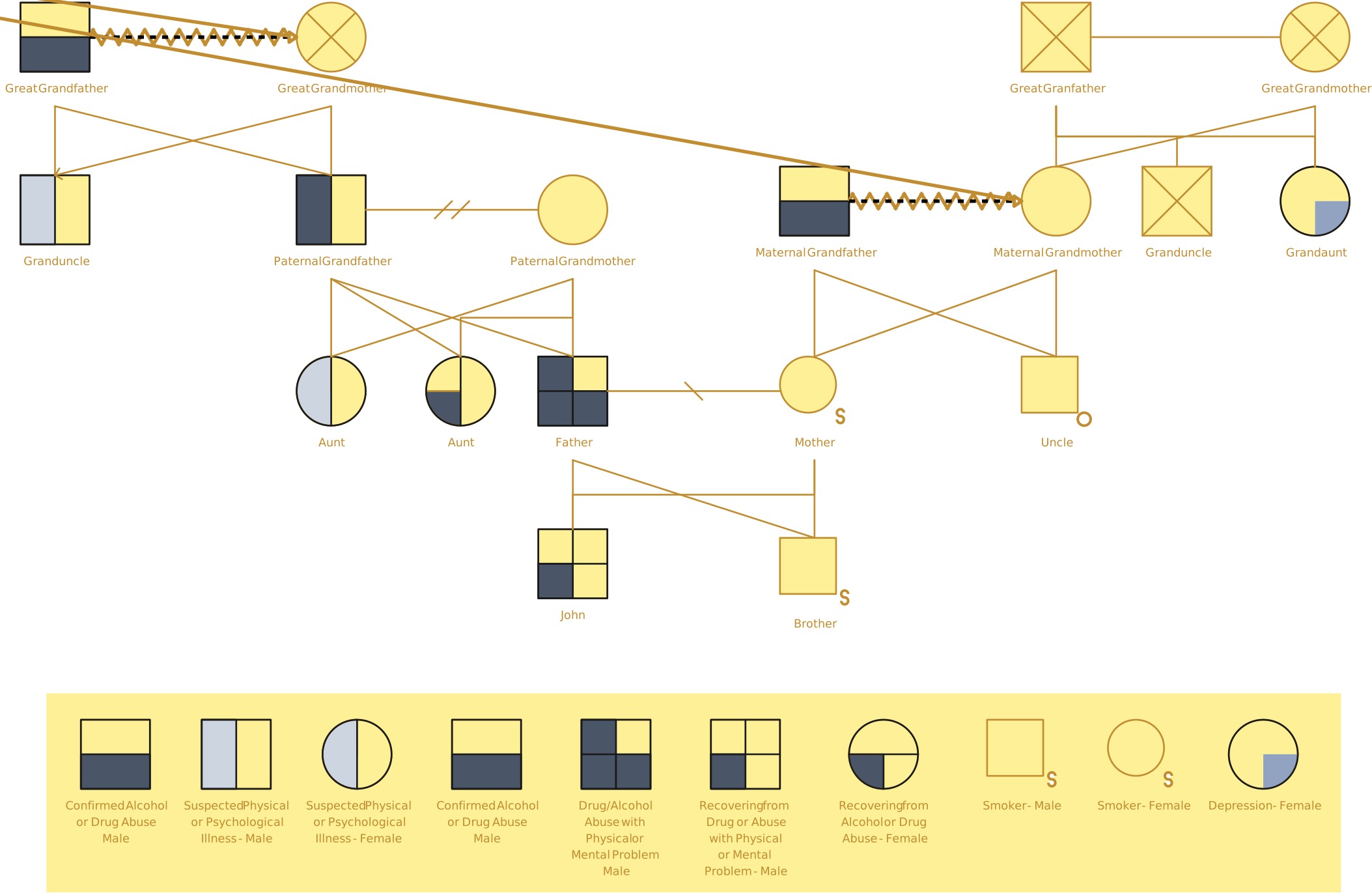
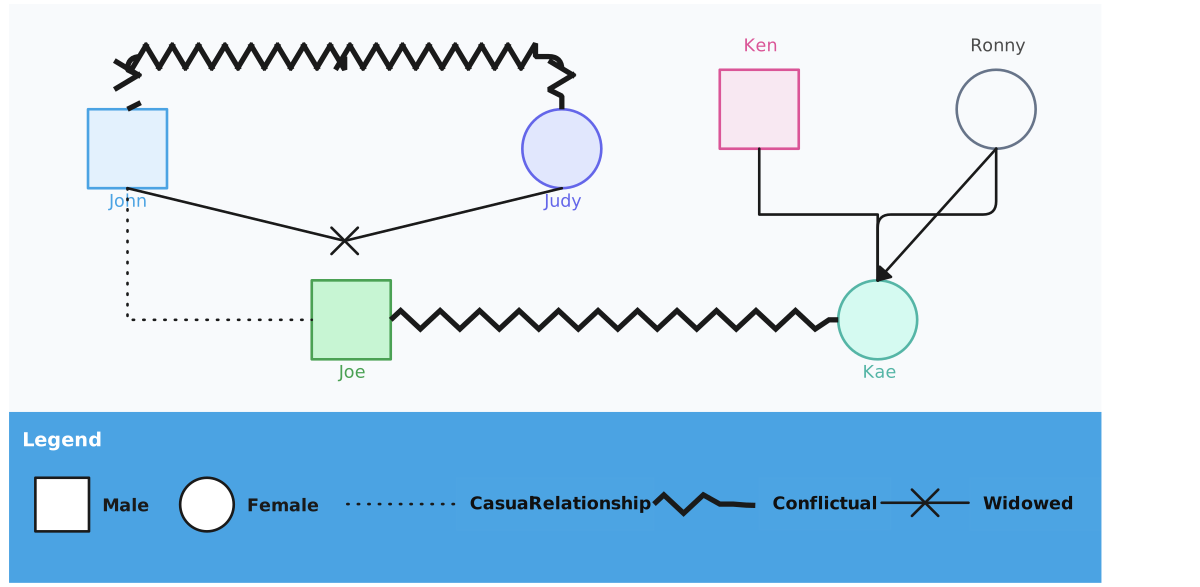
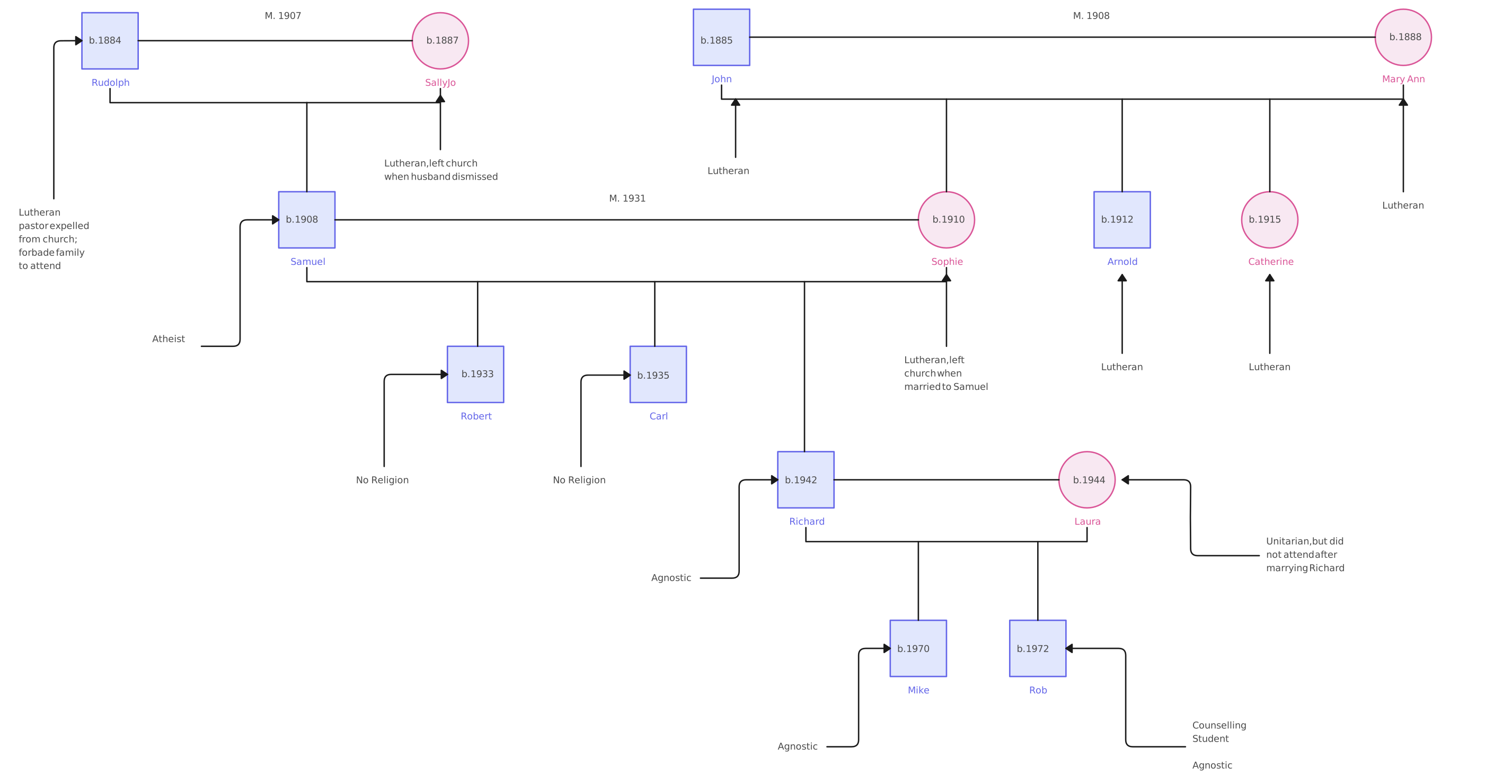
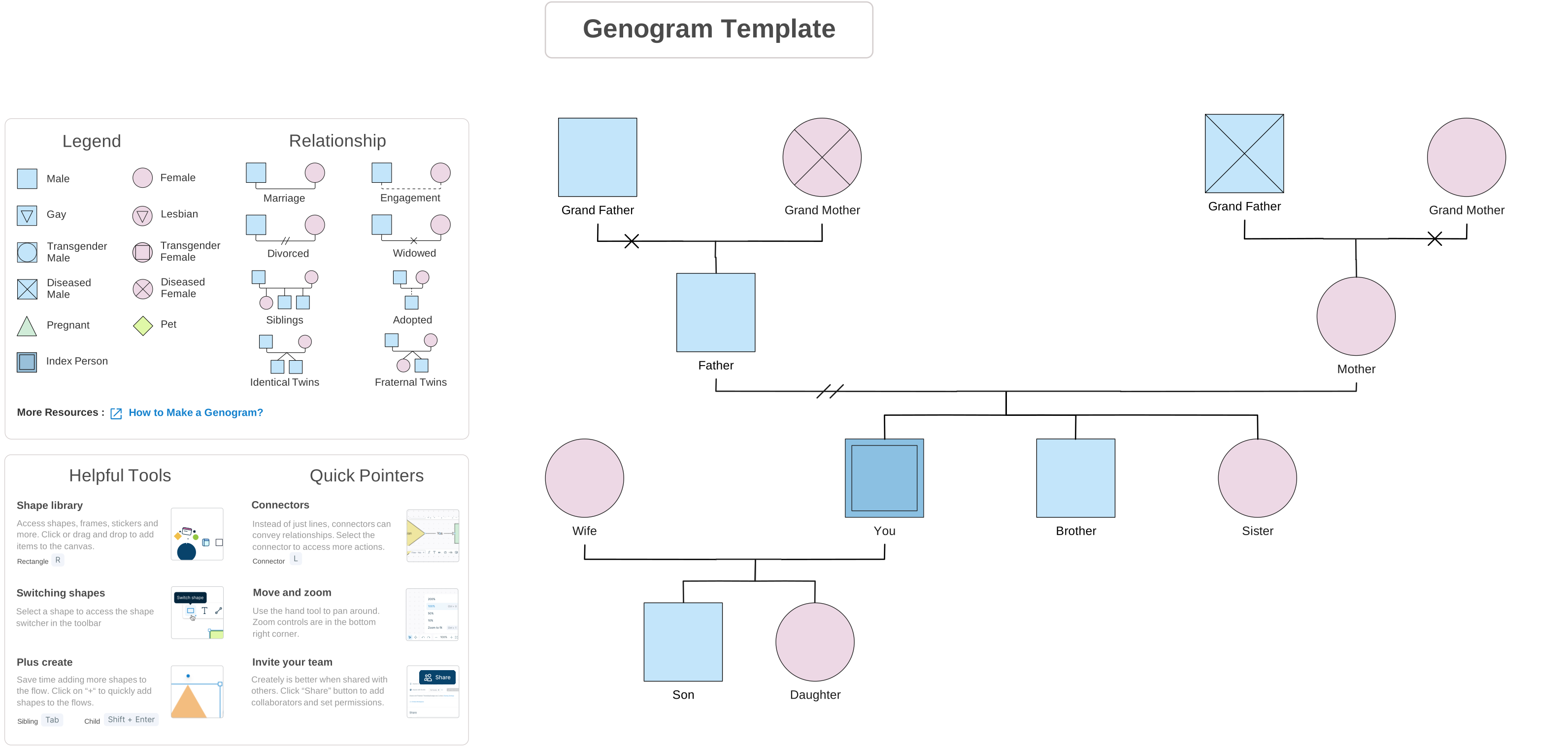
Free Genogram Templates to Use with Shortcuts


Helpful Resources for Making Genograms
Browse our collection of ready-made genogram templates for clinical-grade applications.
Learn about genogram symbols, relationships, and how to use them in making genograms.
Discover practical ways to use genograms during therapy sessions.